
Support · Your other tools
Remote support
Let techs start a Zoho Assist or TeamViewer session from a ticket, with the join link sent for them.
Remote support puts a box on the tickets techs work. One click starts a remote session, sends the requester the join link, and notes it on the ticket. It’s included with every plan. You bring your own remote support service: Zoho Assist (any plan, the free one too) or TeamViewer (Business, Premium, or Corporate).
It’s off until a Super Admin sets it up. Others with system settings can look at the page but not change it. A helpdesk uses one service at a time.
1. Pick your service
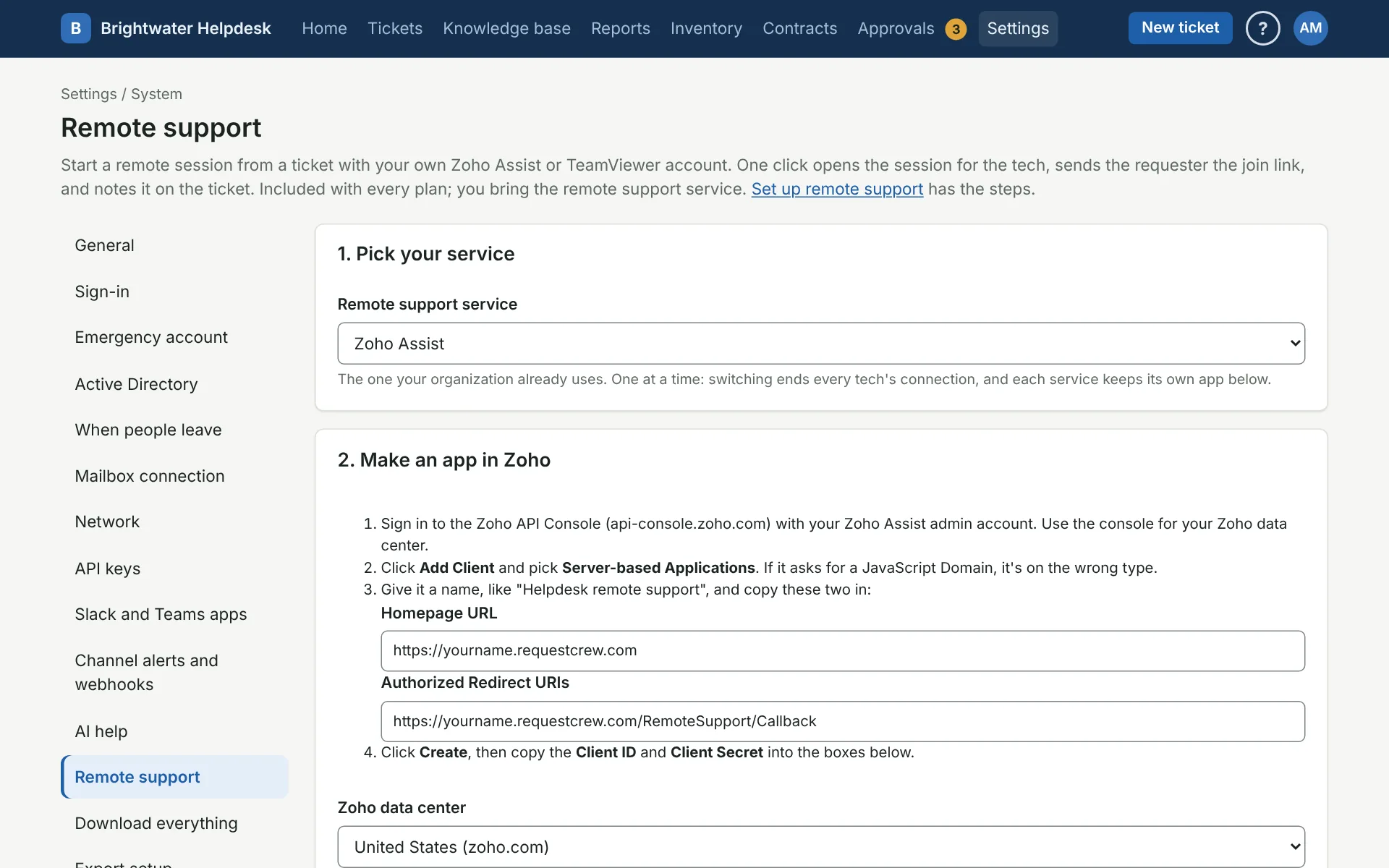
Go to Settings, System, Remote support and pick Zoho Assist or TeamViewer under Remote support service. The page shows that service’s steps. Each service keeps its own app, so switching back later doesn’t lose it.
The page shows this helpdesk’s redirect address to copy into the service’s app. It’s this helpdesk’s address plus /RemoteSupport/Callback:
https://yourname.requestcrew.com/RemoteSupport/Callback2a. Zoho Assist: make an app
- Sign in to the Zoho API Console (api-console.zoho.com) with your Zoho Assist admin account. Use the console for your data center: the address of your Zoho Assist tells you, and assist.zoho.com is the United States.
- Click Add Client and pick Server-based Applications. If it asks for a JavaScript Domain, it’s on Client-based Applications instead, which gives no client secret.
- Give it a name, like “Helpdesk remote support”, and copy in the Homepage URL and the Authorized Redirect URIs from the settings page.
- Click Create, then copy the Client ID and Client Secret into the settings page, and pick your Zoho data center.
2b. TeamViewer: make an app
- Sign in to the TeamViewer Management Console (login.teamviewer.com) with an account that manages your company’s TeamViewer.
- Open Apps (under your profile, or in the page footer) and click Create app.
- Name it “Helpdesk remote support”, add a short description, and copy in the Redirect URI from the settings page.
- For permissions, let it create and view sessions (under session management). If it offers viewing account information, allow that too, so the settings page can show which account each tech connected.
- Save it, then copy the Client ID and Client secret into the settings page.
- Group for sessions is the group in TeamViewer the sessions go in. Leave it blank for “Helpdesk”. If TeamViewer says the group doesn’t exist, make a group with that name in TeamViewer, or put in one you have.
3. Turn it on
- Under Which departments, leave Every department ticked, or untick it and pick the ones that do remote support (IT, say). The box only shows on tickets whose category is in a picked department, so Facilities tickets never see it.
- Tick Turn on remote support and click Save.
The secret is stored encrypted. Clearing the client ID removes the secret too. The helpdesk’s web address under Settings, System, General has to be a public https address, since the service sends techs back to it after they sign in.
How techs use it
On a ticket they work, techs pick how the requester gets the join link (a reply on the ticket, or an internal note to pass along) and click Start a session. The service opens in a new tab. With Zoho Assist they can also pick Show them my screen instead of taking control, and have Zoho email its own invitation. See Working a ticket.
The first time, each tech signs in to their own account with the service and allows the helpdesk. Sessions then show up under that tech in the service, and use their seat or license there. Each session puts a line in the ticket’s history with the service’s session number.
What the service gets
A request for a new session, labeled with the ticket’s number. Zoho also gets the requester’s email address when the tech picks In an email from Zoho Assist. Nothing else from the ticket. The session itself runs between the service and the two computers, under your account.
Connections
Techs who’ve connected lists everyone who’s signed in to the service from the helpdesk, with their last session. Disconnect ends someone’s connection. Techs can disconnect themselves from the Remote support box on a ticket. When someone stops being a tech or is turned off (by hand or by When people leave), their connection ends on its own.
Switching services, or changing the Client ID or Zoho’s data center, ends every connection, and techs sign in again on their next session.
Turn it off
Untick Turn on remote support and save: the box goes away and connections stay for when you turn it back on. Remove the apps deletes both services’ saved client IDs and secrets, turns it off, and ends every connection. Delete the app in the service’s console too if you’re done with it.
The address in these steps is a made-up one. The copy of this guide inside your helpdesk fills in your real one.
More on your other tools
- Open tickets from Slack
- Open tickets from Microsoft Teams
- Channel alerts and webhooks
- Monitoring alerts
- API keys
- AI help
- Network
Still stuck?
Search all the guides or write to us on the Support page.