
Support · Your other tools
Open tickets from Microsoft Teams
Set up the helpdesk's Teams app, so people can open tickets in a chat with it or from any message, and hear back in Teams.
With the helpdesk’s Teams app, people can:
- tell it what’s wrong in a chat with it, check the title and details, and open a ticket
- turn any message into a ticket with Open a ticket in the message’s … menu (and open it for whoever wrote the message, for people allowed to open tickets for others under Settings, Ticket options)
- say my tickets to see what they have open
- @mention it in a channel where it’s been added, with what’s wrong (only the person who asked can open the ticket from the card it answers with)
They hear back in their chat with the app, as well as by email: when a tech replies, when the ticket is resolved, and the “still need help?” reminder.
The app is a bot you make in your own Azure subscription. You’ll need someone who can create resources in Azure and someone who can upload apps in the Teams admin center. The bot’s free pricing tier is all it needs.
1. Make an Azure Bot
- In the Azure portal (portal.azure.com), click Create a resource, search for Azure Bot, and click Create.
- Give it a name (like helpdesk-bot), a subscription, and a resource group.
- Under Pricing tier, click Change plan and pick Free.
- Under Microsoft App ID, pick Single Tenant and Create new Microsoft App ID.
- Click Review + create, then Create, and wait for it to finish.
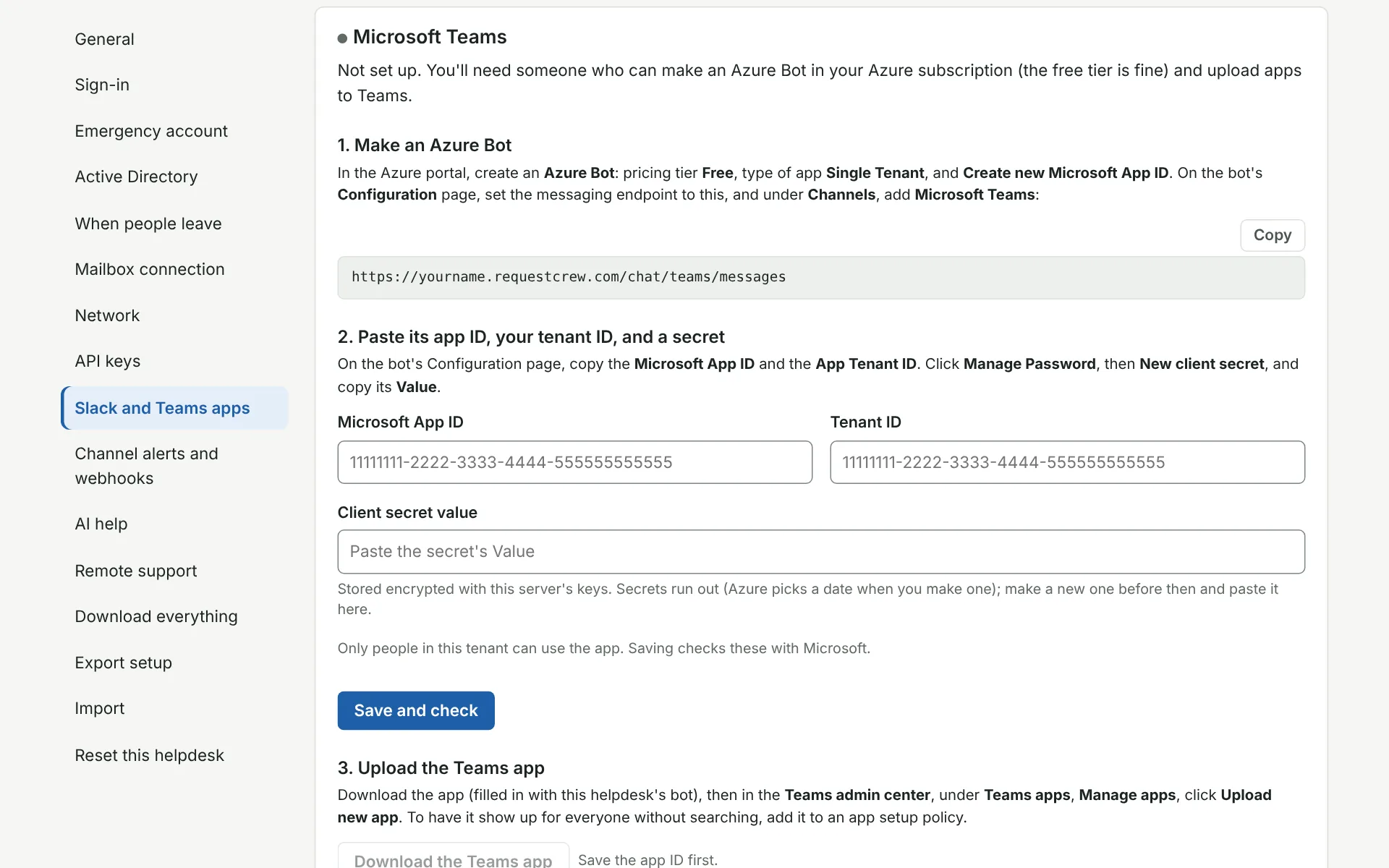
- Open the bot. On its Configuration page, set Messaging endpoint to this, and click Apply:
https://yourname.requestcrew.com/chat/teams/messages- On its Channels page, click Microsoft Teams, agree to the terms, pick Microsoft Teams Commercial, and click Apply.
2. Connect it to the helpdesk
- On the bot’s Configuration page, copy the Microsoft App ID and the App Tenant ID.
- Click Manage Password next to the app ID. In the app registration that opens, under Certificates & secrets, click New client secret, give it a description and an expiry, and copy its Value (not its Secret ID). You can’t see it again later.
- In the helpdesk, go to Settings, System, Slack and Teams apps. Under Microsoft Teams, paste the app ID, tenant ID, and secret, and click Save and check. The helpdesk asks Microsoft for a token to make sure they work.
Secrets run out on the date you picked. Put a reminder on your calendar to make a new one and paste it in before then, or the app stops answering.
3. Upload the Teams app
- On Slack and Teams apps, click Download the Teams app. It’s a small zip file with this helpdesk’s bot, name, and icon in it. Don’t unzip it.
- In the Teams admin center (admin.teams.microsoft.com), go to Teams apps, Manage apps, and click Upload new app. Pick the zip. (If there’s no upload button, custom apps are turned off: turn on Upload custom apps under Manage apps, Actions, Org-wide app settings, and allow custom apps in your app permission policy.)
- To have it show up for everyone without searching, add it under Teams apps, Setup policies, in Installed apps (and Pinned apps, if you like). Otherwise people find it in Teams under Apps, Built for your org.
Try it: open the app in Teams and send it a message like “test ticket”.
When the helpdesk is updated, the Teams app may get new features. Download it again and upload it in the admin center over the old one.
Who can use it
People in your organization’s Microsoft tenant only, not guests. They’re matched to the helpdesk by their Microsoft account, or by email address. Anyone else whose address is in your email domains (under Settings, System, Mailbox connection) is added the first time they use it, like someone emailing the helpdesk. Guests can email the helpdesk instead.
New tickets from Teams go in the same category as email, unless you pick another one under For both. Routing rules apply as usual.
If something’s wrong
- The app doesn’t answer: check the messaging endpoint on the bot’s Configuration page matches the address above exactly, the Teams channel is turned on, and the secret hasn’t run out. Paste a new secret if you’re not sure.
- “This helpdesk app only works in its own organization’s Teams”: the tenant ID on Slack and Teams apps isn’t the tenant the person is in.
- No updates in Teams after opening a ticket from a message: the app needs to be installed for that person (a setup policy does that for everyone). They still get email.
- The bottom of the Slack and Teams apps page lists the last messages the helpdesk sent people, and any that didn’t go through.
To stop, click Turn off Teams, and remove the app in the Teams admin center.
The address in these steps is a made-up one. The copy of this guide inside your helpdesk fills in your real one.
More on your other tools
- Open tickets from Slack
- Channel alerts and webhooks
- Monitoring alerts
- Remote support
- API keys
- AI help
- Network
Still stuck?
Search all the guides or write to us on the Support page.