
Support · Sign-in
Set up Active Directory sign-in
Install the on-site agent so people sign in with their Windows username and password, or automatically on domain PCs.
This lets people sign in with their Windows username and password, the one they type every morning. On domain PCs at work it can sign them in with no typing at all. Microsoft sign-in keeps working alongside it.
The helpdesk reaches Active Directory through a small on-site agent: a Windows service on any domain-joined server that dials out to the helpdesk. Nothing on your network is opened to the outside, so it works wherever the helpdesk runs.
People are matched to their helpdesk account by the mail field on their AD account, so make sure it’s filled in. Someone with no mail field can’t sign in this way.
Install the agent
- Pick a server. Any domain-joined Windows Server that’s always on. A domain controller isn’t needed or recommended. A second server gives you a spare.
- Make a key. Under Settings, System, Active Directory, in On-site agents, type the server’s name and click Add an agent. Copy the key now. It’s shown once, and each server gets its own.
- Install it. Click Download the agent and copy the zip to the server. Right-click it, choose Properties, tick Unblock, and unzip it. Double-click Install RequestCrew Agent, say yes to the admin prompt, and paste the key. The helpdesk’s address is already filled in.
Within a few seconds, the agent shows as connected on the helpdesk. It runs under its own built-in Windows account and talks to AD as the server’s computer account, so there’s no service account password to manage.
The agent only needs to reach the helpdesk on port 443. If it never shows as connected, check that your firewall lets WebSocket connections out to https://yourname.requestcrew.com, and look in Event Viewer under Windows Logs, Application, source RequestCrewAgent.
Turn it on
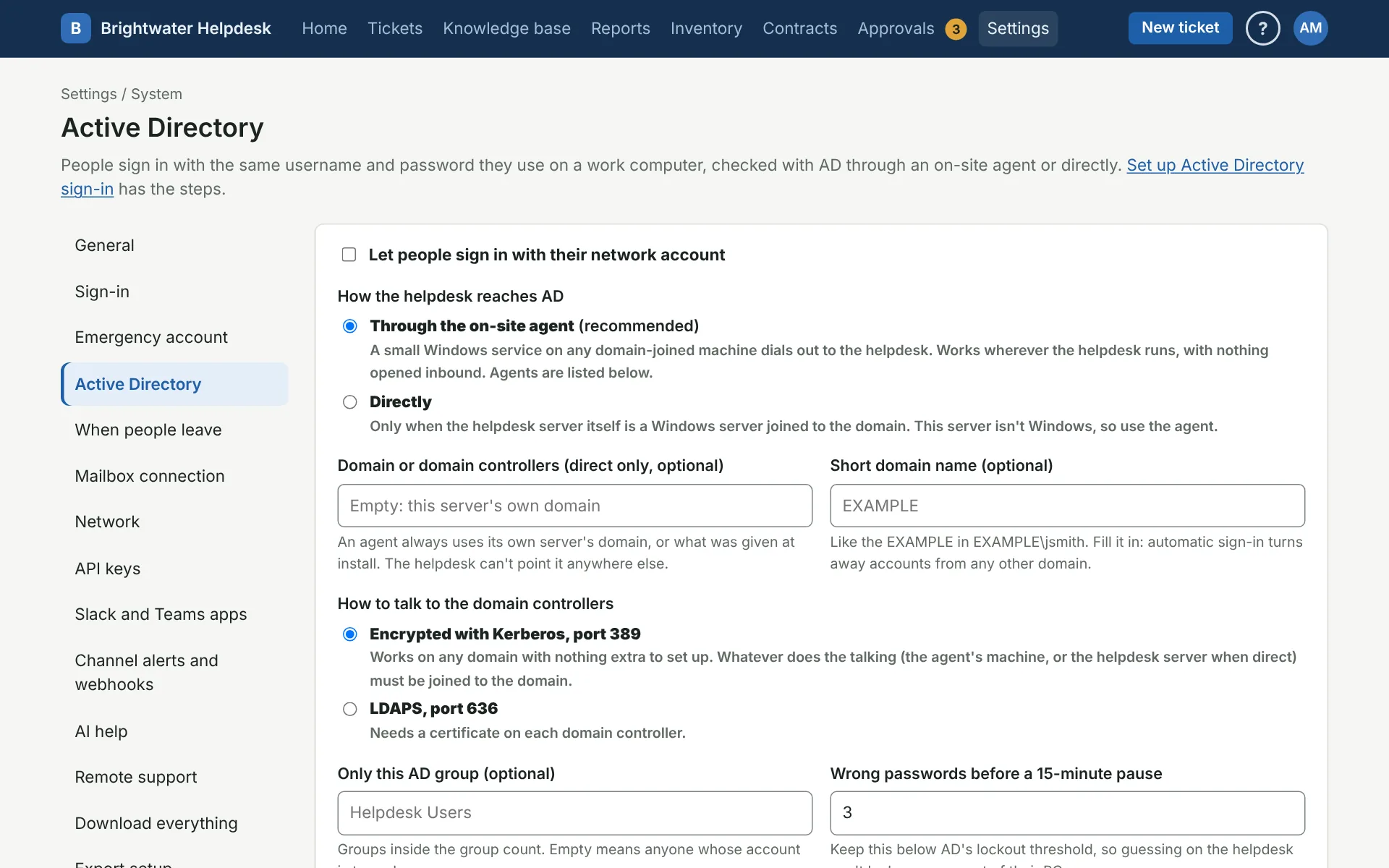
On the Active Directory page:
- Tick Let people sign in with their network account and choose Through the on-site agent.
- Short domain name: the name people type before the backslash, like EXAMPLE.
- How to talk to the domain controllers: Encrypted with Kerberos works as is. Pick LDAPS only if your domain controllers have certificates for it.
- Only this AD group (optional): only its members can sign in this way. Groups inside it count.
- Wrong passwords before a 15-minute pause: keep it below your domain’s account lockout threshold, so the helpdesk stops a guesser before AD locks the real person out of Windows.
Save, click Test the directory, then use Look someone up in AD to check one person’s mail field comes back.
Sign people in automatically (optional)
The installer prints an address on the agent’s server, like http://fs01.example.local:8085/helpdesk-signin/.
- Paste it into The agent’s sign-in address and tick Sign people in automatically on domain PCs inside the network.
- Add the server part of that address (like http://fs01.example.local:8085) to the Local intranet zone by Group Policy: Computer Configuration, Administrative Templates, Windows Components, Internet Explorer, Internet Control Panel, Security Page, Site to Zone Assignment List, value 1. Edge and Chrome follow it.
People on the office network or VPN then see Sign in with this computer. What counts as inside is set under Network.
Keep it running
- Updating: after the helpdesk is updated, download the agent again and run Install RequestCrew Agent. Press Enter when it asks for a key to keep the one it has.
- If every agent goes quiet for 5 minutes, Super Admins get an email and a phone alert, and another when one is back.
- A lost or rebuilt server: click Revoke next to its agent. Its key stops working at once. Agent keys are powerful, so keep the agent’s server patched and admin-only.
There’s also a Directly option, for a helpdesk that runs on its own Windows server joined to your domain. That one needs work on the server itself, so it’s covered in the server guide that comes with the download.
The address in these steps is a made-up one. The copy of this guide inside your helpdesk fills in your real one.
More on sign-in
- System settings and sign-in
- Set up Microsoft sign-in
- Set up Google, Okta, or other sign-in
- Active Directory and Microsoft 365
- Find people who aren't in the helpdesk yet
- When people leave
- Emergency account
Still stuck?
Search all the guides or write to us on the Support page.