
Support · Sign-in
Emergency account
A way in for when normal sign-in breaks.
The Emergency account is your way in when Microsoft sign-in or the network sign-in isn’t working. It has the Super Admin role and signs in at /Account/Emergency with a username, a password, and a code from an authenticator app. Set one up before anything goes wrong. Without it, nobody can get in if sign-in breaks.
Set it up or change it
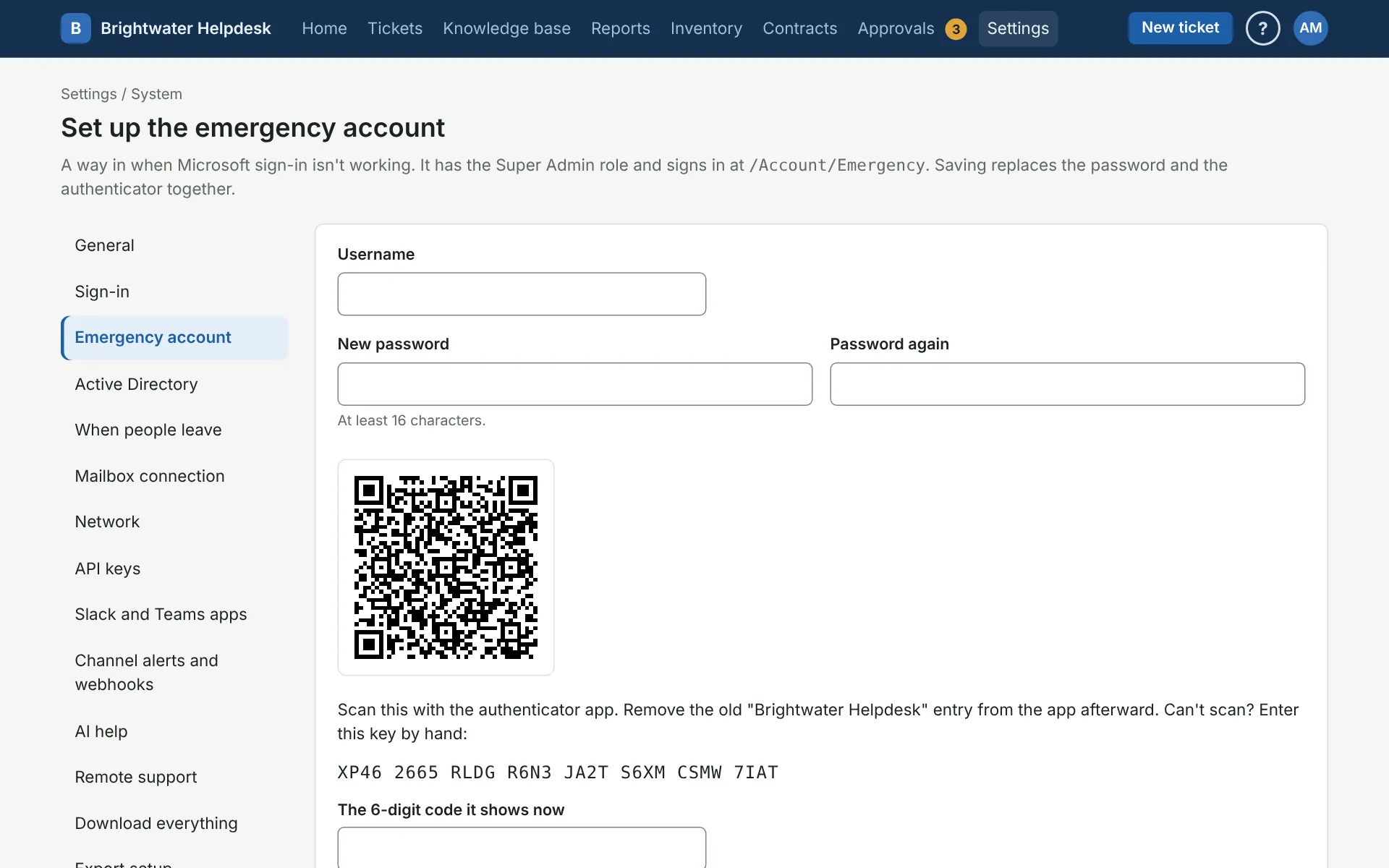
- Pick a Username (4 to 64 letters, numbers, dashes, dots, or underscores).
- Type a New password of at least 16 characters, twice. A short sentence works well. It can’t contain the username.
- Scan the picture with an authenticator app, or type the key under it by hand.
- Type the 6-digit code the app shows now, and click Save.
Saving replaces the password and the authenticator together, so the old ones stop working right away. If you’re changing it, remove the old entry from the authenticator app afterward.
Store the password and the authenticator somewhere safe that doesn’t depend on the helpdesk or your normal sign-in, like a sealed envelope or a shared password vault. Make sure more than one person can get to them.
When it’s used
Every sign-in with the emergency account goes to the audit log, and the Super Admins get a phone alert saying where it came from. Too many wrong tries lock it for 15 minutes, which is logged and alerted the same way.
The Sign-in page shows when it was last used, and warns if it’s locked or if its authenticator can’t be read. If that happens, set it up again.
More on sign-in
- System settings and sign-in
- Set up Microsoft sign-in
- Set up Google, Okta, or other sign-in
- Set up Active Directory sign-in
- Active Directory and Microsoft 365
- Find people who aren't in the helpdesk yet
- When people leave
Still stuck?
Search all the guides or write to us on the Support page.