
Support · People and access
Settings overview
How the Settings page is laid out, who sees what, and where changes are recorded.
Settings is where you set up how the helpdesk works: who’s in it, what people can ask for, where tickets go, and how it looks. Each tile opens one area, and the tile tells you what’s in it (how many people, forms, rules, and so on).
Getting started, on a new helpdesk
A new helpdesk shows its Super Admins a short list at the top of Settings: let your people sign in, connect the mailbox, set up the emergency account, add your techs, and open a test ticket. Each step ticks itself off once it’s done, and each has a How link to its guide. Skip one that doesn’t apply to you (Undo puts it back).
Hide this list folds it to one line with Show the list to bring it back. Until everything is done or skipped, the home page also shows “Finish setting up your helpdesk” to Super Admins; Not now hides that for a week. Once the list is finished, both go away for good.
The groups
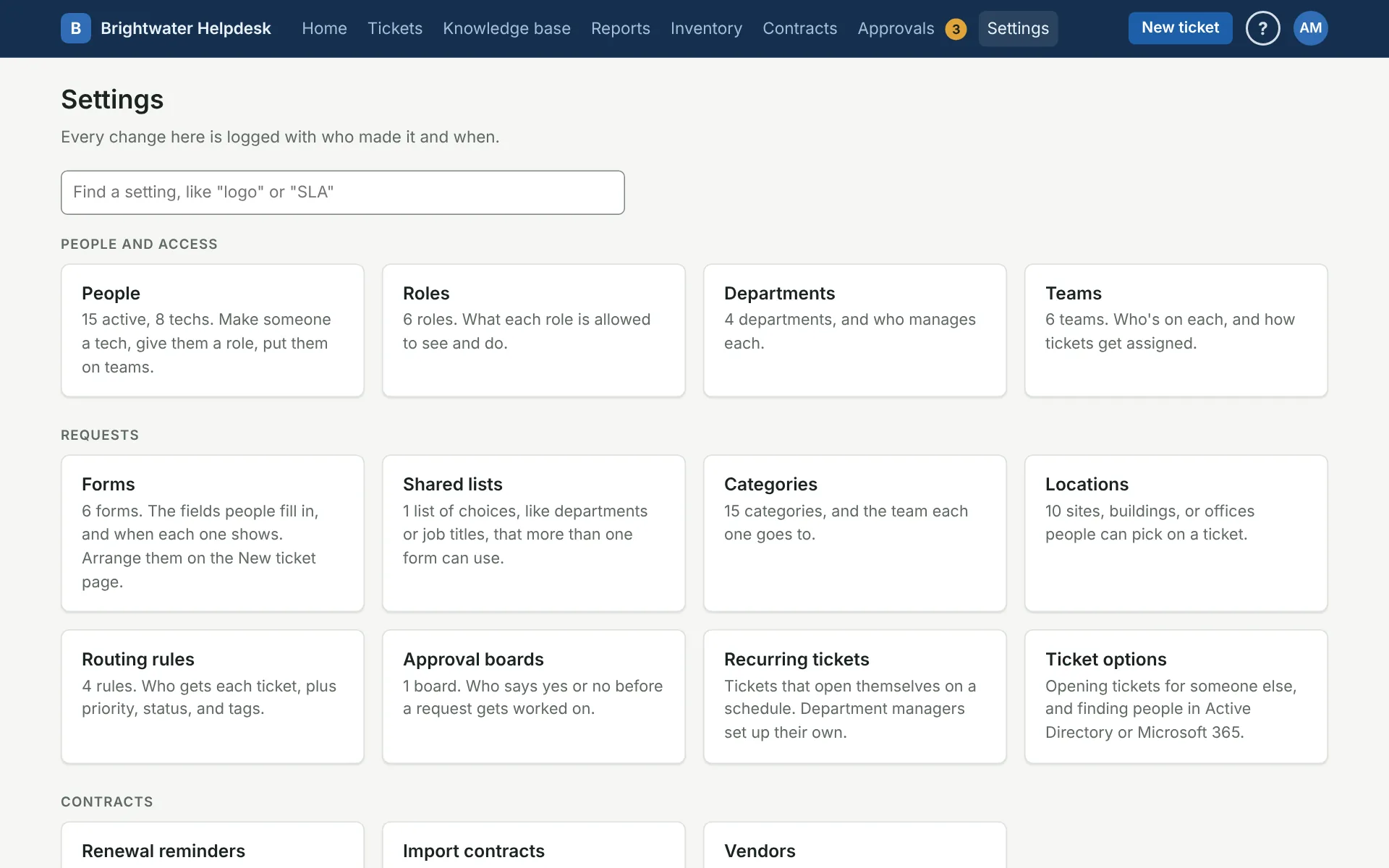
- People and access: people, roles, departments, and teams.
- Requests: forms, shared lists, categories, locations, routing rules, approval boards, recurring tickets, and ticket options.
- Service and feedback: business hours, SLAs, and surveys.
- Look and communication: branding, home pages, email, and notices.
- Records: the audit log, and records retention for Super Admins.
- System: sign-in (Microsoft, Google, Okta, and others), Active Directory, turning off people who leave the directory, the mailbox connection, the network, AI help, remote support, API keys, Slack and Teams apps, channel alerts and webhooks, the emergency account, downloading everything, exporting your setup, importing from another helpdesk, and resetting the helpdesk before you go live.
Find a setting
Start typing in the Find a setting box, like “logo” or “SLA”, and the tiles narrow as you type. Groups with nothing left are hidden. Press / anywhere on the page to jump to the box, unless you’ve turned one-key shortcuts off.
Moving around a group
Each group’s pages have a menu down the side listing that group’s other pages, so you can go from Categories to Routing rules, say, without coming back here. The page you’re on is highlighted. On a phone, the menu is a row across the top you can swipe. Like the tiles, it only lists pages your role can open.
You see what your role allows
The page only shows the groups and tiles your role has permission for. Someone who manages people sees People and access. Someone with Manage helpdesk settings sees categories, locations, SLAs, branding, email, and the rest. If a tile you expect isn’t there, your role doesn’t include it. See Roles.
Super Admin and Admin
There are two built-in roles for running the helpdesk:
- Super Admin has every permission, including the System group.
- Admin has everything except Manage system settings. Admins see every group but System, and they can’t open records retention.
The system settings decide how people sign in and how the helpdesk talks to Microsoft 365, Active Directory, and your mail service, so they stay with Super Admins. When a new version is out, Super Admins also see a note about it at the top of the Settings page.
Every change is logged
Each change you save in Settings goes in the audit log, with who made it and when. If something changes and nobody remembers why, start there. See Audit log.
More on people and access
Still stuck?
Search all the guides or write to us on the Support page.