
Support · People and access
People
Who's in the helpdesk, how they got there, and how to set their role, teams, and departments.
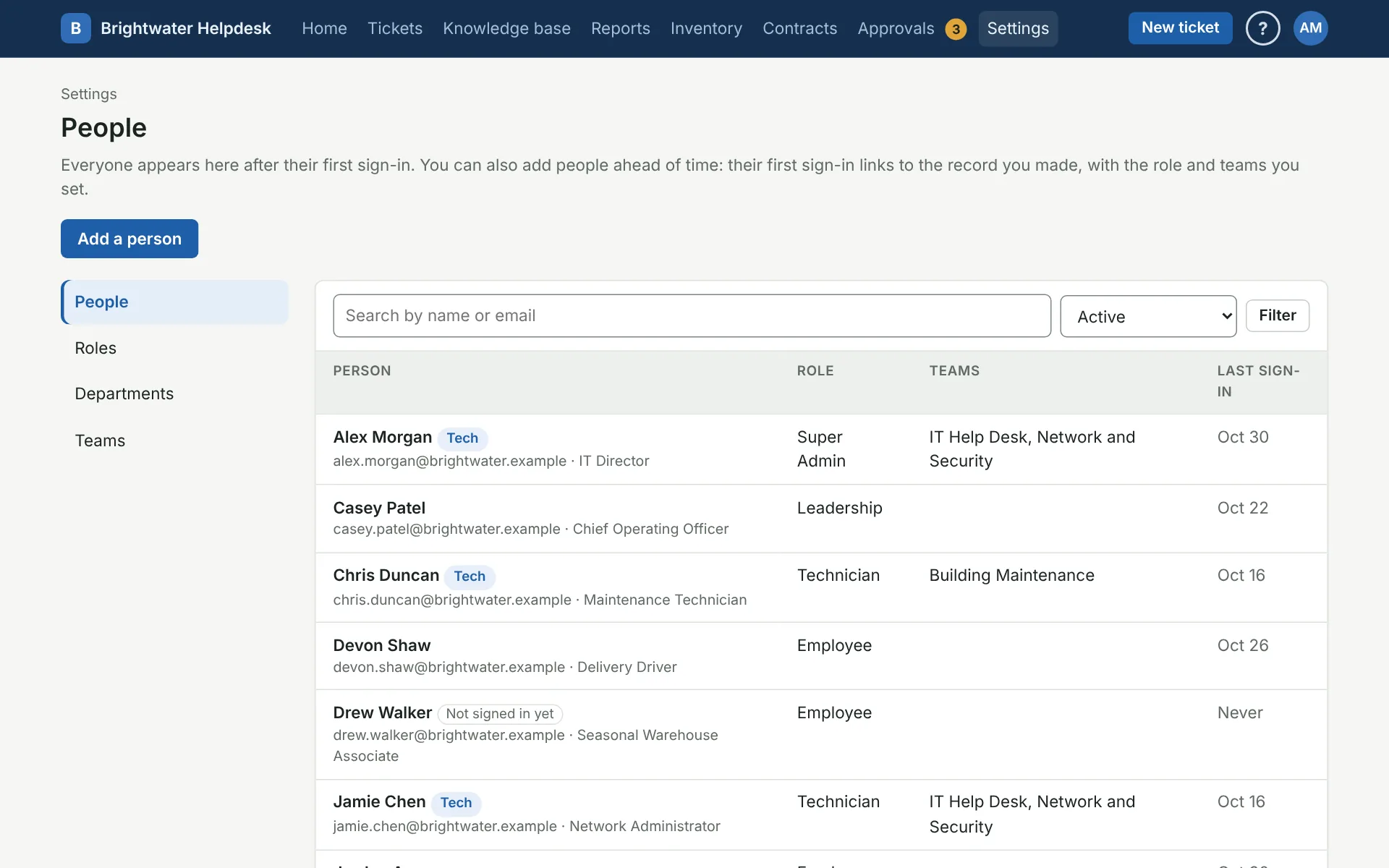
People lists everyone in the helpdesk. Search by name or email, or use the list next to the search box to see only techs, people who haven’t signed in yet, or people who are turned off.
How people get here
- Signing in. The first time someone signs in with Microsoft 365 or their network account, they’re added with the default role (or Super Admin, if they’re on the Super Admins list).
- Picked from the directory. Someone opening a ticket for a person who isn’t here yet can pick them from Active Directory or Microsoft 365, which adds them with the default role. See Ticket options.
- Emailing the helpdesk. Someone from your organization who emails the helpdesk for the first time is added as email-only. They can’t sign in, but they can open tickets and reply by email.
- Added by hand. See below.
Add someone ahead of time
Click Add a person and fill in their name, email, role, teams, and departments. Use the exact email address their account has. The first time they sign in with Microsoft 365, Google or another sign-in provider, or their network account, the helpdesk finds this record by email and keeps what you set. Until then, they can be named on tickets and get updates by email.
Give someone a helpdesk password
For someone with no Microsoft 365 or network account, use the Helpdesk password section on their page. It shows when helpdesk passwords are turned on under Settings, System, Sign-in.
- Make a temporary password shows a password once. Give it to them in person or by phone, and they pick their own the first time they sign in.
- Email them a link to set it sends a link that works for 3 days. This needs the helpdesk mailbox connected.
You can’t set a password for yourself, or for someone whose role has more access than yours. A Super Admin can do it for anyone.
Techs, roles, and teams
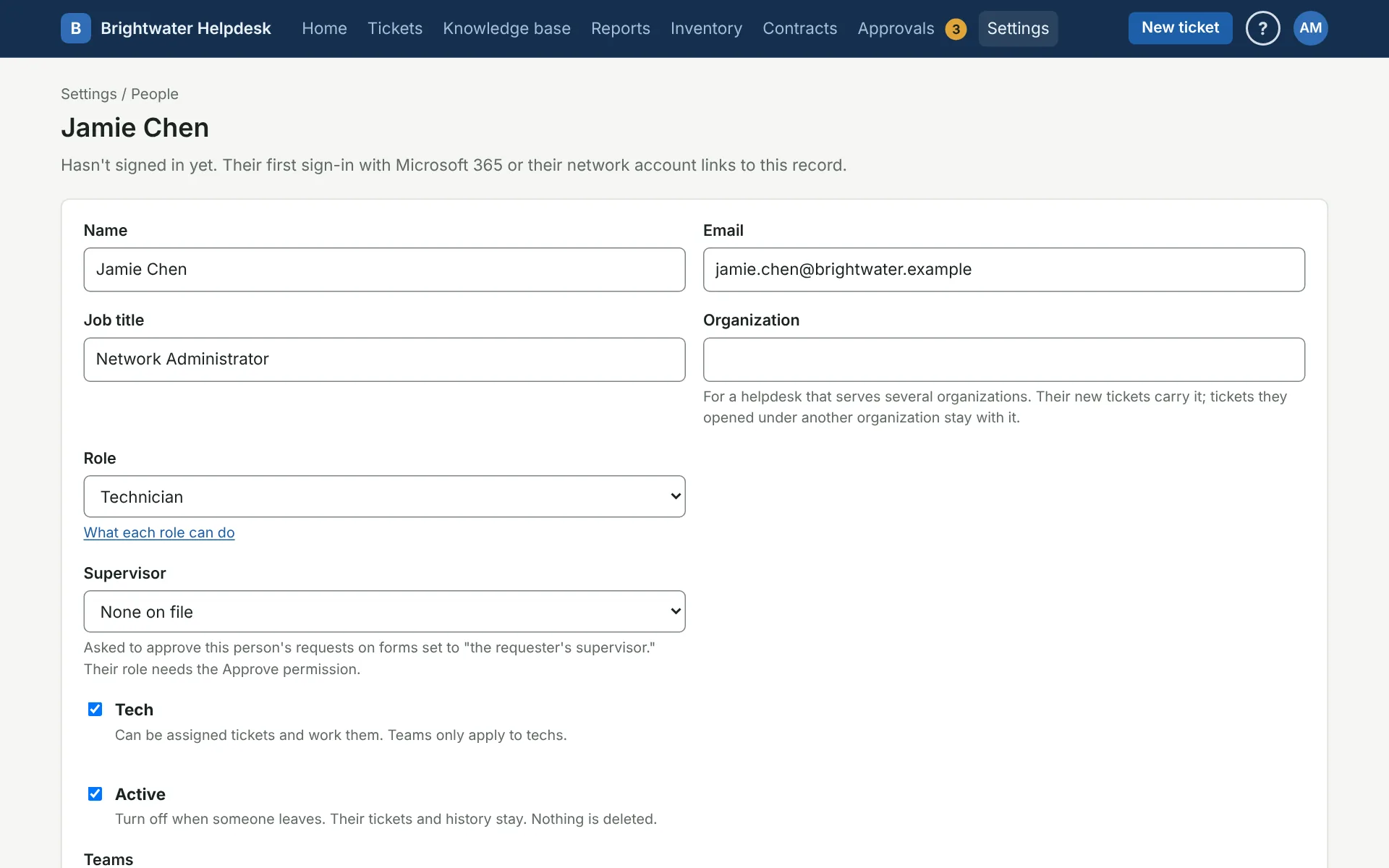
- Tick Tech for anyone who works tickets. Only techs can be assigned tickets or put on teams. If your plan has a tech limit, the page shows how many are used.
- Role decides what they can see and do. You can only give a role with permissions you have yourself. See Roles.
- Supervisor approves their requests on forms that ask for the requester’s supervisor. The supervisor’s role needs the Approve permission.
- Manages these departments makes them a manager. With the See department tickets permission, they see every ticket in those departments.
- Organization is for a helpdesk that serves several organizations, like a support desk or an IT shop with clients. Their tickets carry it, so you can filter the ticket list and reports by it, and Ticket options can let people in one organization see each other’s requests. Their new tickets carry their organization; tickets they opened under another one stay with it, so a new organization never sees them. Most helpdesks leave it empty.
Turn someone off
When someone leaves, untick Active and save. They can’t sign in and drop out of pick lists, but their tickets and history stay. If they were a tech, their open tickets go back to their teams’ queues. The same happens if you untick Tech.
The helpdesk can do this for you: with When people leave on, anyone whose account is turned off or deleted in Active Directory, Microsoft 365, or Google Workspace is turned off here within the hour. Their page says when and why. Ticking Active for someone it turned off turns them back on and keeps them on.
The helpdesk won’t let you turn off the only person who can manage people, or the only active Super Admin. Give someone else that access first.
Sign someone out everywhere
If someone lost a phone, or stayed signed in on a computer they shouldn’t have, open their page and click Sign them out everywhere, under Signed in. Every sign-in they have ends the next time it’s used, including ones kept with Keep me signed in, and their phone alerts stop. They can sign in again right away, so if someone else might know their password, change it too, or turn them off. If they sign in with Microsoft or Google, end their sessions there as well, or that account may sign them straight back in. It’s there for people with no more access than you, and it goes in the audit log.
More on people and access
Still stuck?
Search all the guides or write to us on the Support page.