
Support · Working tickets
Working a ticket
Take a ticket, answer the requester, keep notes, and move it along to resolved.
A ticket’s page has the conversation on the left and everything about it on the right. If you’re on the ticket’s team, Assign to me makes it yours and moves an open ticket to In progress.
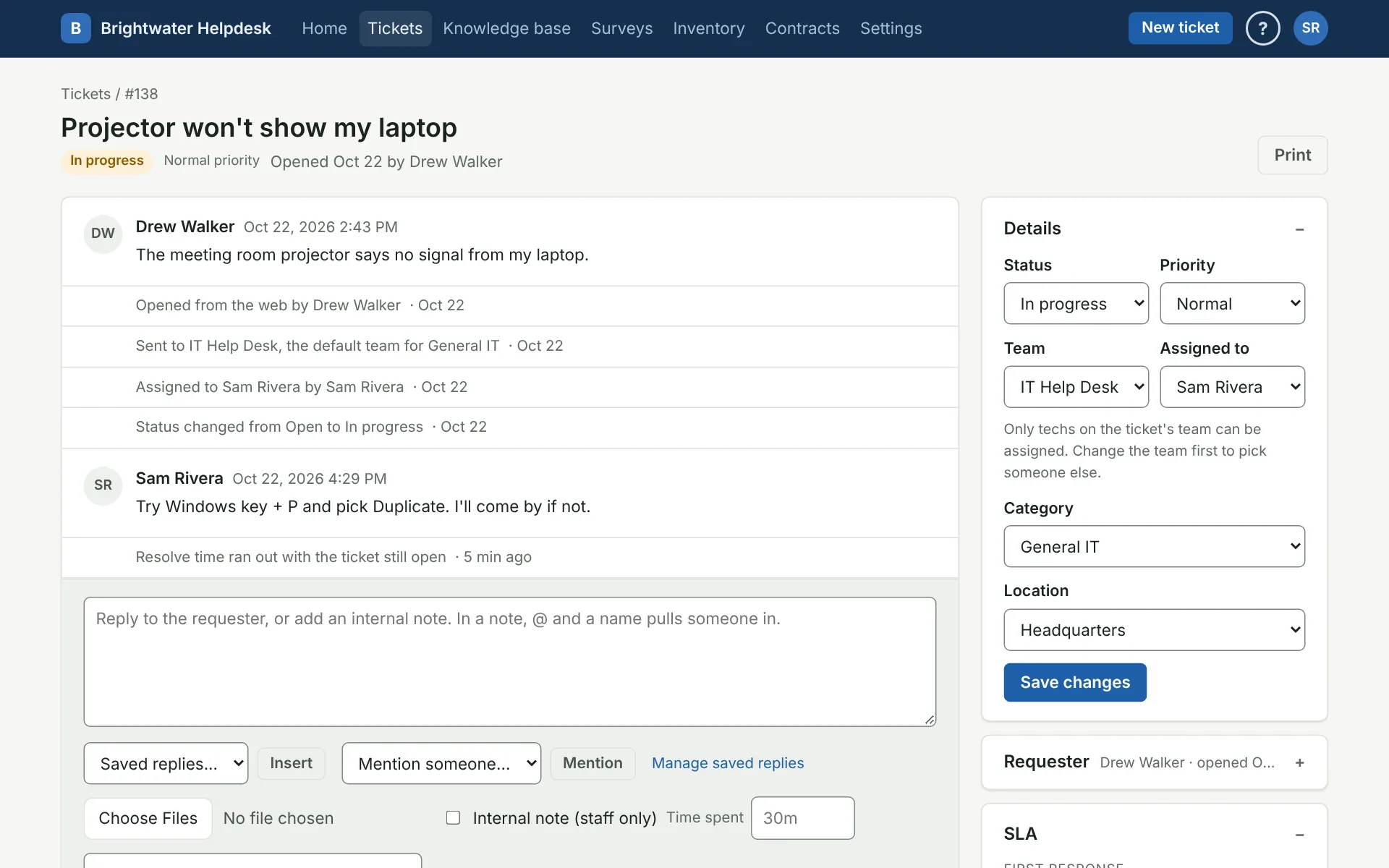
Change the details
The Details card holds status, priority, team, who it’s assigned to, category, and location. Change what you need and click Save changes. Only techs on the ticket’s team can be assigned, so change the team first to hand it to someone elsewhere. A new category brings its usual team along, unless you changed the team too.
Waiting on approval can’t be picked by hand. Use Ask for approval instead, so someone is actually asked. The ticket waits, with its clock stopped, until they decide.
Reply or add a note
Type in the box at the bottom. Left as is, it’s a reply the requester and anyone copied can see. Tick Internal note (staff only) to keep it among staff. In a note, @ and a name (or Mention someone) tells that person, as long as they can see the ticket’s notes.
You can set the status in the same step, like Set to Waiting on requester, and log Time spent. When the requester answers a ticket that’s waiting on them or resolved, it opens again on its own.
Pick from Saved replies to drop in an answer you give often. See Saved replies.
Tasks
Tasks split up the work, like “Make building keys” for Facilities on a new hire ticket. Under Add a task, describe it and pick a team or a person. They can see the ticket and check the task off, even if it’s another team’s. Some forms add their own tasks once the ticket is cleared to be worked, and then the ticket resolves itself when the last one is done.
Tasks can go in steps, and each team has its own (a task given to one person has that person’s own). A team’s step 2 task waits until that team’s step 1 tasks are done: it shows something like waits for IT’s step 1, it can’t be checked off yet, and it stays off the team’s My tasks until its turn comes. Then the team (or person) gets the usual “you have a task” email and alert. A task set to wait for every team shows waits for step 1 (every team) and waits on all earlier steps. When you add a task by hand, pick Right away or After the other tasks are done (that one waits for every other task, any team). Removing a task that was holding things up lets the next one start, the same as checking it off.
Form answers
On a ticket from a form, the answers sit under what the requester wrote. Click Edit the form answers to fix one (the asset tag they typed was off by a digit) or fill in one only techs answer, like a root cause. Those show Techs only, and the requester never sees them, on the ticket or printed. Empty ones show Not filled in yet so they’re easy to spot.
Each change goes in the ticket’s history with what it was before. The site and priority have their own boxes, so they aren’t changed here, and neither are files or the description. Changing an answer doesn’t run routing rules, ask for approval, or add the form’s tasks again; those happen when a ticket opens.
Remote support
When your helpdesk has remote support set up (Zoho Assist or TeamViewer), tickets you work in the departments it’s on for show a Remote support box (until the ticket is closed). Pick how they get the join link and click Start a session. The session opens in a new tab.
- As a reply on this ticket posts the link as your reply, so they get it by email like any reply. Anyone copied on the ticket gets it too.
- In an internal note puts the link where only staff see it, for you to pass along by phone or chat.
- With Zoho Assist, In an email from Zoho Assist has Zoho send its own invitation to their email address, and you can pick Show them my screen instead of taking control of theirs.
The first time, the service asks you to sign in to your own account and allow the helpdesk. After that it’s one click. Each session puts a line in the ticket’s history with the service’s session number. Disconnect in the box ends your connection, and the next session asks you to sign in again. Setting it up: Remote support.
The SLA clock
If an SLA applies, the SLA card shows when the first reply and the resolve are due. The clock stops while the ticket waits on the requester or an approval, and on a vendor if the SLA says so. See SLAs and business hours.
Copy, relate, or merge
Under Copied, pick someone and click Copy to keep them in the loop. Under Related tickets, type a number and click Relate. For a duplicate, use Merge this into another ticket: this one closes, what it says goes on the other as an internal note, and its requester is copied there. The ticket you keep has to be open.
Outages: main tickets
When lots of people report the same thing, like email being down, open one ticket for the problem itself (or pick one of theirs) and link the rest to it. You need to be able to work the main ticket. Under Linked tickets on it, type their numbers, like 12, 15, 18, and click Link. Or tick them on the ticket list and type the main ticket’s number in Link to main # before clicking Change.
Each person keeps their own ticket, so they each hear about it the usual way. Then, on the main ticket:
- Tick Also send to the open linked tickets under a reply, and it goes on each one as your reply, so each requester gets it by email. It starts unticked, so a question for the main ticket’s own requester stays theirs. Internal notes always stay on the main ticket.
- Resolving it resolves the open linked tickets, and closing it closes the resolved ones. A linked ticket that reopened after the main ticket was resolved stays open. Picking Resolved with a reply sends one email each, not two.
A linked ticket says which main ticket it’s part of, and Unlink it takes it off. A main ticket can’t be linked to another one. Use Merge instead when a ticket is a true duplicate that should close.
See who else is here
When someone else has the ticket open or is writing a reply, a bar at the top says so. It also tells you if the ticket changed since you opened it, with a link to reload.
Print it
Print puts the whole ticket on one page, ready to print or save as a PDF. For a copy going outside your team, click Leave out internal notes and history.
More on working tickets
Still stuck?
Search all the guides or write to us on the Support page.