
Support · Working tickets
The ticket list
Find the tickets you need, save the views you use, and change several tickets at once.
The Tickets page is your queue. It shows open tickets by default, with the most urgent at the top and, inside each priority, the oldest first.
Pick a view
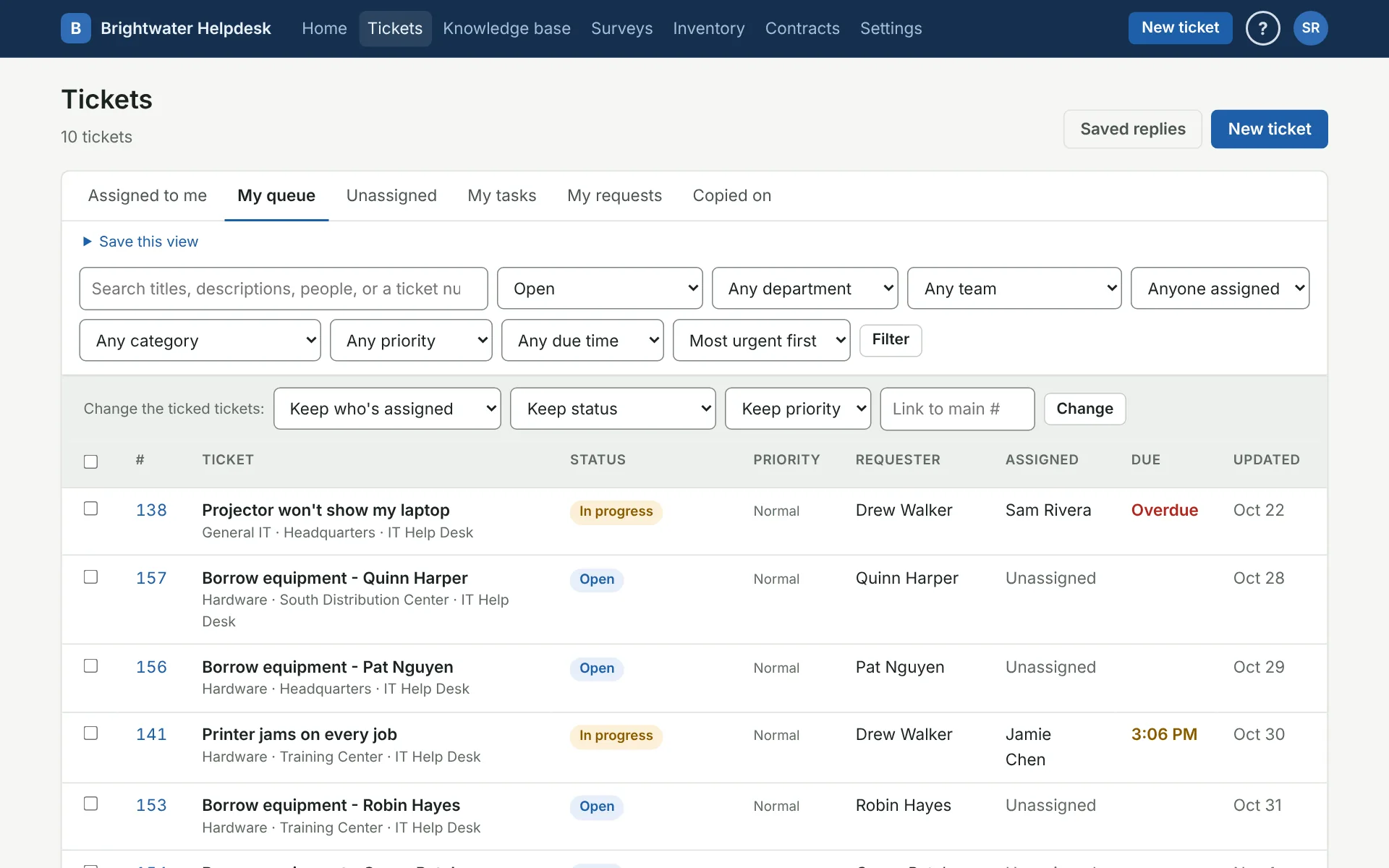
The tabs across the top change which tickets you see:
- Assigned to me: tickets with your name on them.
- My queue (or All tickets if you see every ticket): everything for your teams and departments.
- Unassigned: the same, but only tickets nobody has picked up yet.
- My tasks: tickets where a task is waiting on you or your team.
- My requests and Copied on: tickets you asked for, and ones you’re following.
Search and filter
The search box looks through titles, descriptions, requester names, and form answers. Type a ticket number (with or without the #) and you go straight to that ticket.
Use the status box to switch between Open, Resolved and closed, or Any status. Open includes everything that’s waiting on someone. More filters narrows by department, organization (when people have one), team, who it’s assigned to, category, priority, and due time (Due soon or Overdue). Click Filter to apply.
Sort by due time
Most urgent first is the usual order. Pick Due soonest first to put tickets with a running SLA clock at the top, soonest due first, and everything else after. The Due column shows the next due time, and turns to Overdue once it’s passed.
Save a view
Once the list looks the way you want, open Save this view, give it a name, and click Save. It keeps the tab, filters, search, and sort. Your saved views show as chips above the filters, so you’re one click from “Urgent and unassigned” or “Overdue for Facilities.” They’re yours alone. You can keep up to 20, and the × on a chip deletes it.
Change several tickets at once
Tick the boxes next to the tickets (the box in the header ticks the whole page), then pick what to change under Change the ticked tickets:
- Assign them to yourself, to another tech, or unassign them.
- Set a status.
- Set a priority.
- Link them to a main ticket, for an outage: type its number in Link to main #. See Working a ticket.
Click Change. Each ticket goes through the same checks as changing it by hand, and each change lands in its history. If some can’t change, like when the tech you picked isn’t on that ticket’s team, you’ll see which ones and why. The rest still change.
Waiting on approval isn’t in the status list. To hold a ticket for someone’s OK, open it and use Ask for approval. See Working a ticket.
More on working tickets
Still stuck?
Search all the guides or write to us on the Support page.