
Support · Email
Emails
Change what the helpdesk's emails say, see what went out and came in, and test.
The Email page has the wording of every email the helpdesk sends, the addresses that open tickets, and a log of mail sent and received. The box at the top says whether the mailbox is connected. Connecting it is under Mailbox connection, and the logo, colors, and footer on every email are under Branding.
Change what an email says
Under What the emails say, click an email to edit it.
- The Message is plain text. A blank line starts a new paragraph.
- The ticket number, the “reply above this line” note, and the button to open the ticket are added for you.
- If the subject doesn’t have the ticket number (like
[Ticket #123]), it’s added to the end. Replies need it to find their ticket. - Put back the original wording undoes your changes.
After you save, the Preview shows the email filled in from the newest ticket, with a made-up reply.
Fill-ins
Fill-ins in curly braces get swapped for the real thing when the email goes out. The full list is on the edit page. A few you’ll use often:
{recipient.firstname}for the person getting the email{ticket.number}and{ticket.title}{ticket.assignee}, which says “nobody yet” when nobody has it{comment.body}for the reply itself (on some emails, like a request that wasn’t approved, the page says what it holds instead)
People choose which of these emails they get on their own Email and phone alerts page. The receipt and the resolved email always go out.
Addresses that open tickets
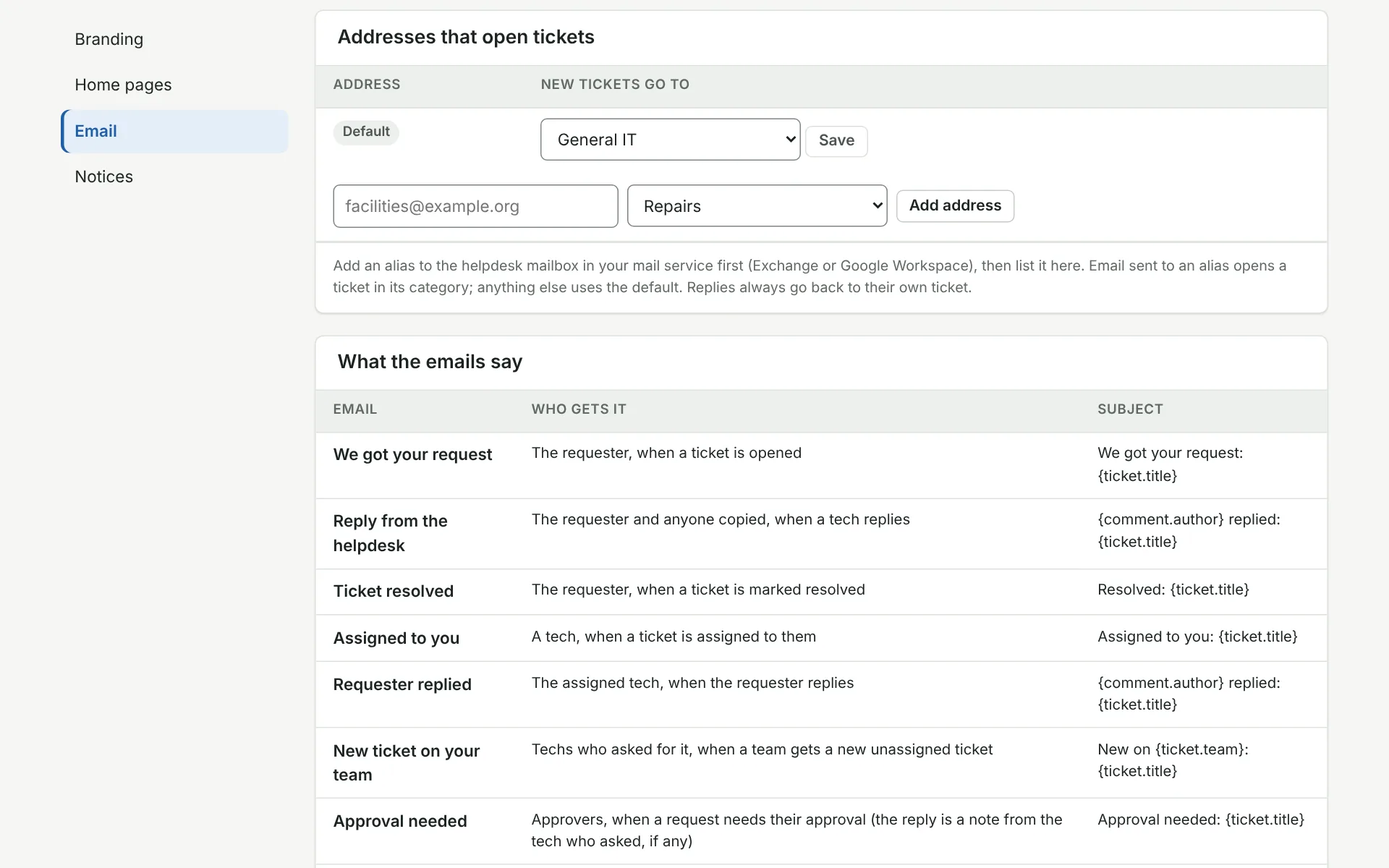
Each address opens new tickets in the category you pick for it. To add one (facilities@, say), make it an alias of the helpdesk mailbox in your mail service first, then add it here. Mail that doesn’t match an address uses the Default one’s category. Replies always go back to their own ticket.
See what was sent
Sent lists the newest 50 emails. Click a subject to see the email exactly as it went out. Emails with a password link aren’t shown, since anyone could use the link.
If the mail service is down, emails wait and are tried again for about six hours. After that they show Failed. Hover over it to see why, and click Try again once it’s fixed.
Received lists the newest 50 emails that came in and what happened to each: a new ticket, added to a ticket, or ignored (often with a note on why).
Test it
To check that sending works, use Send me a test email on Mailbox connection. It shows up under Sent here.
On a laptop copy of the helpdesk, the mailbox can be in test mode, where nothing leaves the computer. Sent emails still show in the list, and Pretend an email arrived lets you send one in as anyone, as a new ticket or a reply. Test mode isn’t offered on a real server.
More on email
- Which email setup to pick
- RequestCrew mail
- Mailbox connection
- Connect a Microsoft 365 mailbox
- Connect a Google Workspace mailbox
- Connect another mail service
Still stuck?
Search all the guides or write to us on the Support page.