
Support · Email
RequestCrew mail
The built-in email of a helpdesk RequestCrew hosts, and how to use your own address with it.
On a helpdesk RequestCrew hosts, email works from the start. The helpdesk has its own address (it’s shown on Settings, System, Mailbox connection), it sends receipts, replies, and password emails from it, and anyone in your email domains can email it to open a ticket or reply to one. There’s nothing to connect.
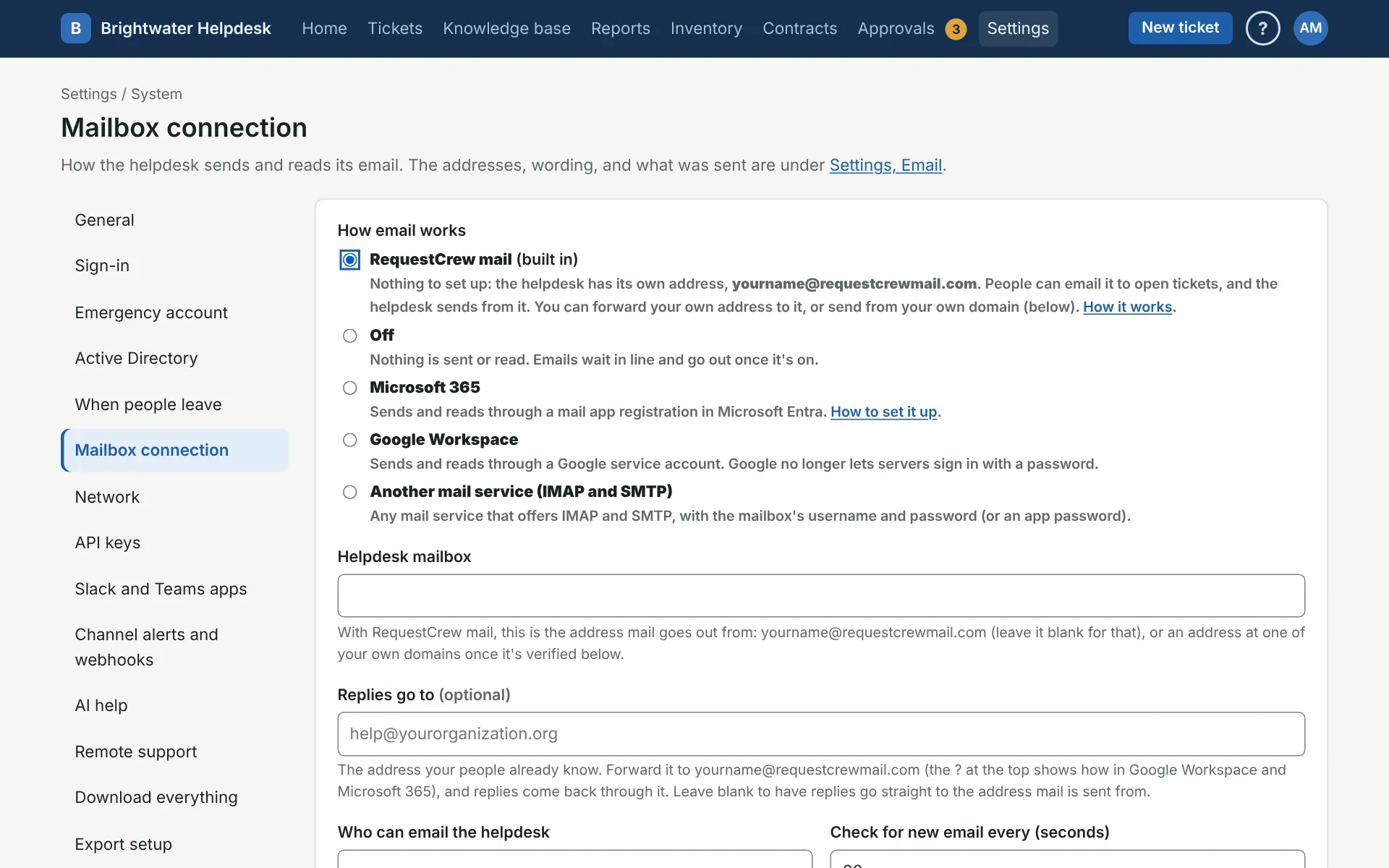
If you’d rather use your own mailbox instead, pick Microsoft 365, Google Workspace, or another mail service on the same page. You can switch back any time.
Use the address your people already know
Most organizations already have an address like help@yourorganization.org. Keep it, and forward it to the helpdesk’s address:
- Forward your address to the helpdesk’s address (steps below).
- On Mailbox connection, put your address in Replies go to and save.
Now email sent to your address opens tickets, and when someone replies to the helpdesk’s emails, the reply goes to your address and comes through the same way. Emails still say they’re from the helpdesk’s address, unless you also send from your own domain (next section).
Google Workspace: in the Google Admin console, open Apps, Google Workspace, Gmail, Routing, and add a routing rule for that address that also delivers to the helpdesk’s address. (Or, if it’s a group, add the helpdesk’s address as a member.) Use the admin console rather than Gmail’s own forwarding setting: that one sends a confirmation code to the helpdesk’s address, and the helpdesk doesn’t take email from Google itself, so the code never reaches you.
Microsoft 365: in the Exchange admin center, open the mailbox (or shared mailbox) and forward its email to the helpdesk’s address. Microsoft 365 blocks forwarding outside your organization until it’s allowed, so also turn on automatic forwarding for that mailbox in Microsoft Defender’s outbound anti-spam policy.
The helpdesk only takes email from your own email domains (under Who can email the helpdesk), and it checks that each sender is real before anything opens: the DMARC check has to pass for the sender’s domain, or, when your domain’s DMARC policy is p=none or it has none, the email has to be signed (DKIM) by your domain. Most organizations already sign their email. If yours doesn’t, Settings, Email says so on each email that was turned away, and turning on DKIM fixes it: in Google Workspace that’s Apps, Google Workspace, Gmail, Authenticate email; in Microsoft 365, turn on DKIM for your domain in Microsoft Defender. DKIM matters for forwarded mail too, since forwarding breaks the other check.
Send from your own domain
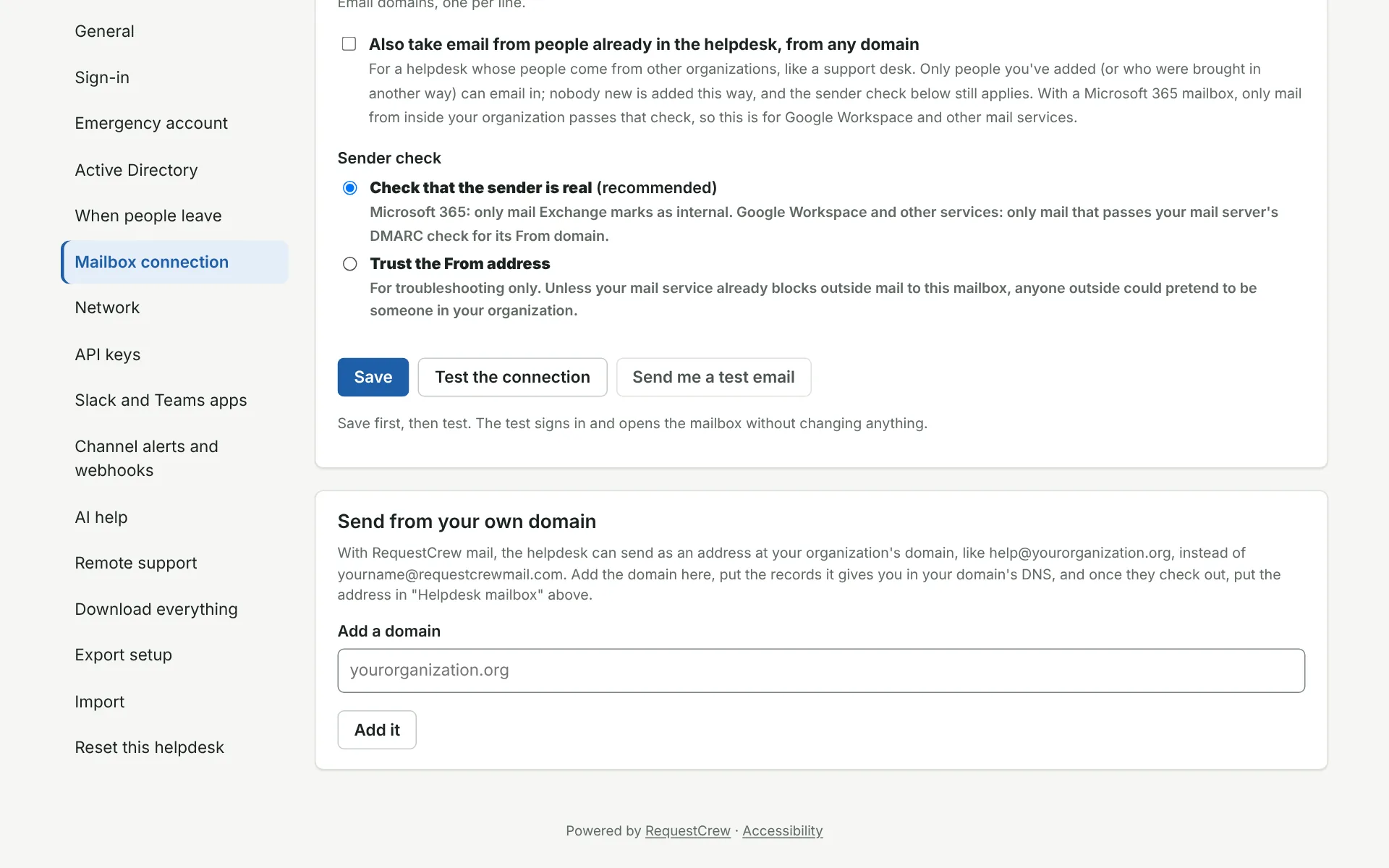
To have the helpdesk’s emails come from an address like help@yourorganization.org:
- On Mailbox connection, under Send from your own domain, type your domain and click Add it.
- It shows the records to add, two or three of them, with the type of each (CNAME or TXT). Add each one in your domain’s DNS, wherever that lives (the company you bought the domain from, Cloudflare, and so on).
- Click Check now. Records usually take a few minutes to show up, sometimes up to a day.
- Once it says Verified, put your address in Helpdesk mailbox and save.
Leave the records in place for as long as you send from that domain. They’re what prove the helpdesk’s emails are really yours, so they don’t land in spam.
A domain can only be set up on one helpdesk. If yours says it’s already set up somewhere, contact RequestCrew support.
Limits
Each helpdesk can send a set number of emails a day, plenty for normal use. Test the connection shows how many have gone out today. If a helpdesk ever reaches its limit, emails wait and go out the next day, and support can raise it.
Emails that bounce, or that someone marks as spam, are marked on the email under Settings, Email.
More on email
- Which email setup to pick
- Mailbox connection
- Connect a Microsoft 365 mailbox
- Connect a Google Workspace mailbox
- Connect another mail service
- Emails
Still stuck?
Search all the guides or write to us on the Support page.