
Support · Forms and approvals
Forms
Build the request forms people fill in, and decide where their tickets go and who has to OK them.
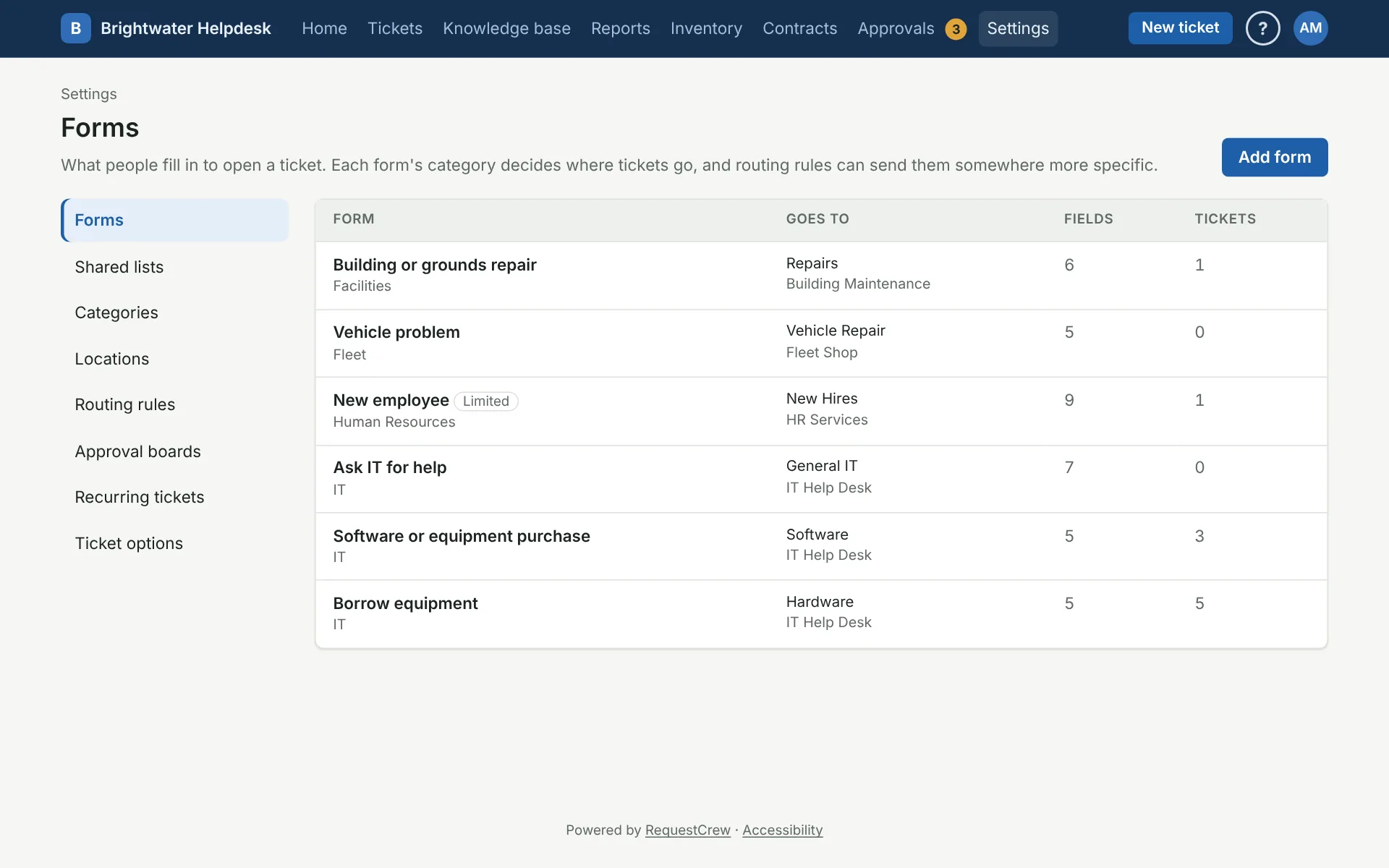
A form is what people fill in on the New ticket page to open a request. Click Preview at the top of a form to try it the way people will see it.
Set up the basics
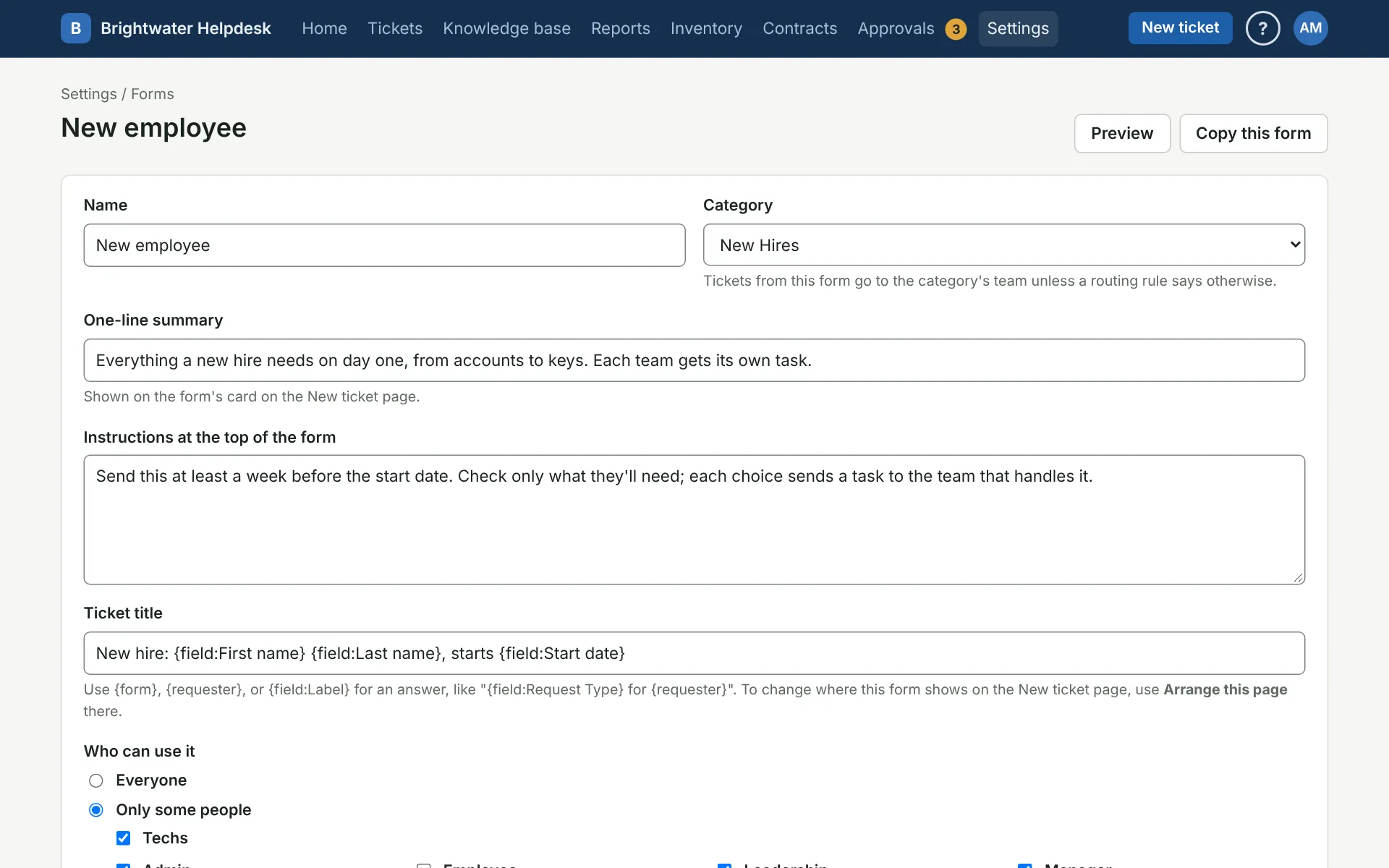
- Name and One-line summary show on the form’s card on the New ticket page.
- Category decides where tickets go. They land with the category’s team unless a routing rule sends them somewhere else.
- Instructions at the top of the form is for anything people should know before they start.
- Ticket title builds each ticket’s title. Use
{form},{requester}, or{field:Label}for an answer, like{field:Request Type} for {requester}. - Who can use it is Everyone, or Only some people: techs, people with the roles you tick, or both.
You always see every form, including limited and turned-off ones, so you can test them.
Add fields
Save the form first. Then pick a type under Add a field and click Add to open the new field’s page. See Form fields, and Shared lists for choices several forms use.
Use the arrows to move a field up or down. A field can’t move above a field it depends on.
Remove takes a field off the form. Old tickets keep their answers. If something else uses its answer, like a show/hide setting or routing rule, change that first.
Add tasks for other teams
Tasks are work other teams do on tickets from this form, like “Make building keys” for Facilities on a new hire form. Describe the task, pick the team, and pick when it’s needed: Every time, or only when a box is checked or a choice is picked.
Tasks go out once the ticket is cleared to work, either right away or after it’s approved. Each team checks off its own task, and the ticket resolves itself when they’re all done.
Tasks in order
Give each task a Step. Each team has its own line of steps: IT’s step 2 starts as soon as IT’s step 1 is done, so the laptop doesn’t get set up before the account exists, even if Facilities is still making keys. Tasks in the same step happen side by side, and a step with nothing in it (say its tasks only come along for an answer nobody gave) is skipped.
When one team really has to wait on another, like IT setting up a computer only after Facilities puts the desk in, set that task’s Waits for to Every team’s earlier steps. Then it waits for every task in an earlier step, whichever team it’s for. Leave everything in step 1 if order doesn’t matter.
Ask for approval
Under Approval before work starts, pick one:
- An approval board, then pick the Board.
- The requester’s supervisor. Supervisors are set on each person’s page. The Board you pick is the backup when nobody’s on file. With no supervisor and no backup board, the managers of the category’s department are asked.
To ask only sometimes, tick answers under Only for some answers, like a new phone line but not an upgrade. Any one of them is enough to ask. Leave them all unchecked to ask every time.
While it waits, the ticket shows Waiting on approval and its SLA clock is stopped. A yes puts it to work. A no closes it and tells the requester why. See Approval boards.
Copy a form
Making a lot of forms that are mostly the same? Set one up the way you like, then click Copy this form at the top. You get a new form called “Copy of” the old one, with the same settings, fields, choices, show/hide settings, tasks, and approval. Rename it, change what’s different, then tick Active and save.
A few things to know:
- The copy starts turned off, so nobody sees it on the New ticket page until you’re ready.
- Fields you removed from the original don’t come along.
- Routing rules aren’t copied. If tickets from the copy need the same routing, add the new form to those rules on the routing rules page.
- Changing the copy never changes the original, and the other way around. The one exception is a field that gets its choices from a shared list: both forms keep using the list, so changing the list changes both.
Turn a form off
Untick Active and save. The form disappears from the New ticket page, and its old tickets keep their answers.
Delete a form
Made one by mistake, or a copy you don’t need? Delete this form is at the bottom of the form’s page. You can delete a form as long as no tickets came from it. Its fields, tasks, and settings go with it, for good.
If a routing rule checks for the form or one of its answers, the page lists those rules. Change them first, then delete. Once a form has tickets it stays, so old tickets still show what was asked. Turn it off instead.
Change the order on the New ticket page
Forms are grouped by department there, and new ones go last. To move them, open the New ticket page and use Arrange this page.
More on forms and approvals
Still stuck?
Search all the guides or write to us on the Support page.