
Support · First steps
Your first test ticket
Open a ticket the way your people will, then answer it as a tech, so you see both sides before anyone else does.
The last step on the Getting started list is a test ticket. It takes a few minutes, and it’s the quickest way to see what your people will see. It works best with two people: ask a coworker to open the ticket, and you answer it as a tech. If you’re on your own, you can do both, but you’ll only see the receipt, since the helpdesk doesn’t email you about what you did yourself.
Open it
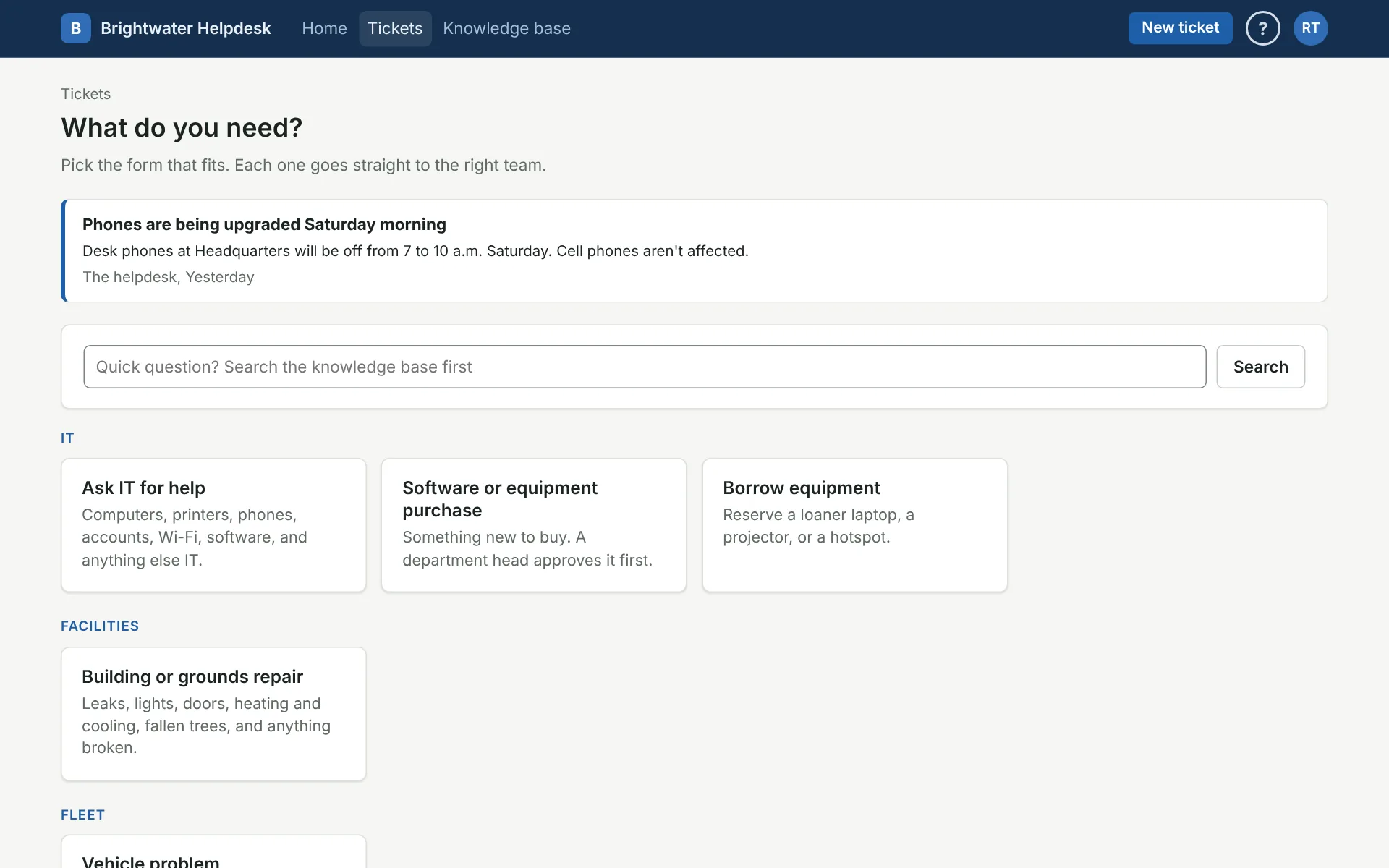
- Click New ticket, at the top of any page.
- Pick a form, like “Ask IT for help,” and fill it in.
- Submit it. You land on the new ticket’s page.
The ticket goes to the team for that form’s category. Depending on how the team is set up, it’s assigned to a tech right away or waits in the team’s queue. See Departments and teams.
The Getting started step ticks itself off as soon as the helpdesk has a ticket.
Answer it as a tech
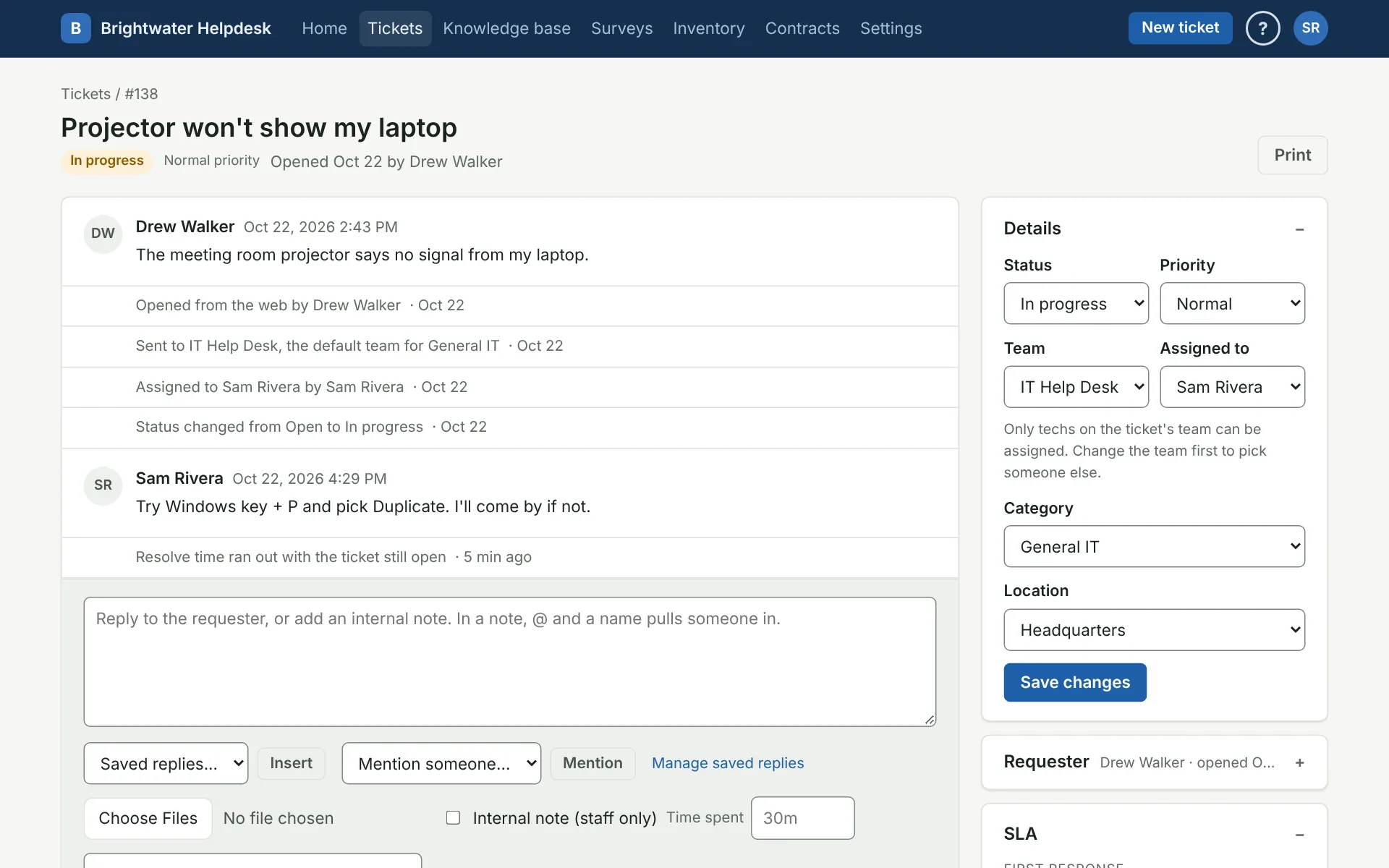
- Open Tickets and find it. Assigned to me and Unassigned are the tabs to look under.
- Type a reply and send it. The requester gets it by email, and it shows on their ticket.
- Tick Internal note and add one. Only staff can see notes, so the requester won’t.
- Under Details, set Status to Resolved and click Save changes. The requester gets an email saying it’s resolved.
If your coworker opened the ticket, ask what they got and whether it made sense. You’ll hear the same questions from everyone else.
Try it by email
Send an email to helpdesk@yourorganization.org from your work address. Within a minute or two it should turn into a ticket. Then reply from your email to the receipt, and the reply should land on the same ticket.
To see what happened to it, open Settings, Email. Received lists each email that came in and what the helpdesk did with it. If it was turned away, the note there says why. See When email isn’t working.
Clean up
Test tickets count in reports. Before your people start using the helpdesk, Reset this helpdesk clears them out and keeps your setup. Only Super Admins can do that.
The address in these steps is a made-up one. The copy of this guide inside your helpdesk fills in your real one.
More on first steps
Still stuck?
Search all the guides or write to us on the Support page.