
Support · Knowledge base
Writing articles
Write, publish, and keep knowledge base articles up to date, with a manager's OK where your department wants one.
A good article answers a question before it turns into a ticket. You can write for the departments of the teams you’re on and the departments you manage. People who change settings can write for any department.
Write one
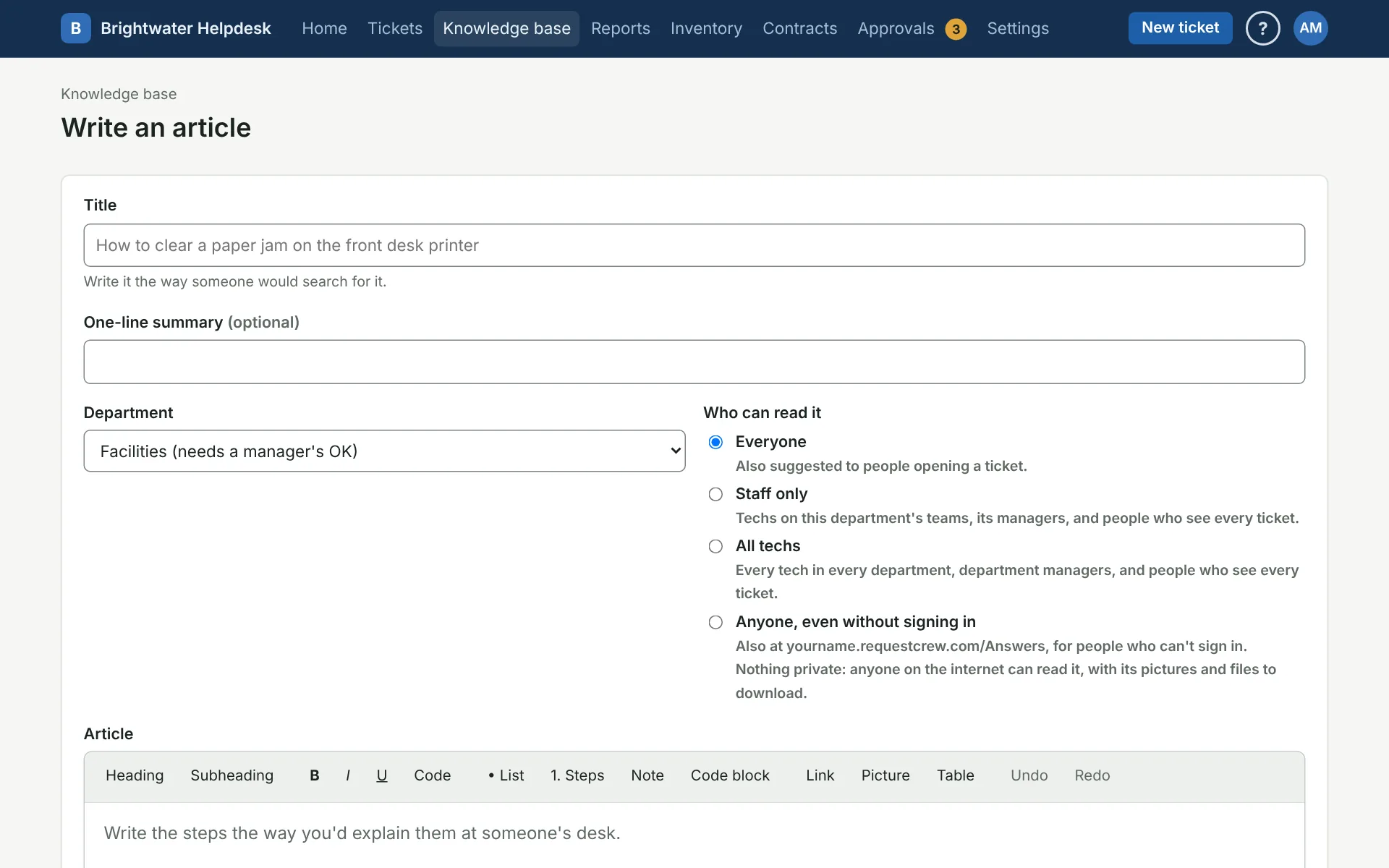
Click Write an article on the knowledge base page.
- Title: write it the way someone would search for it, like “How to clear a paper jam on the front desk printer.”
- Who can read it: Everyone, or Staff only for the department’s techs, its managers, and people who see every ticket. Admins also get All techs (see below). When public articles are on, there’s one more choice: Anyone, even without signing in (see below).
- Other words people might search for: “jam, stuck, copier” helps people who don’t use your words.
- Suggest it for these ticket categories: the article shows up as “These might help” on those request forms, and for techs on those tickets.
The toolbar has headings, lists, numbered steps, notes, tables, and links. Paste a screenshot straight into the text or drag a picture in, then pick a size or drag a corner. Put PDFs and forms under Files to download.
Save, publish, or send for an OK
Save draft keeps it to yourself and the department’s other editors. Publish puts it live. If the department wants a manager’s OK first, you’ll see Send for a manager’s OK instead. The department’s managers are told, and you hear back when it’s published or sent back. A sent-back article opens with the manager’s note at the top. Fix it and send it again.
Your drafts, and anything waiting or sent back, are listed under Drafts and changes on the knowledge base page.
Change a live article
Click Edit on the article. Readers keep seeing the live version until your change is published. An article has one change in progress at a time, so if someone else is already working on it, you pick up their change. Throw away this change leaves the live article as it was.
Approve articles
A department’s managers, and people who change settings, can turn approval on or off under Approval on the knowledge base page. While it’s on, that department’s new articles and changes wait for a manager, and a manager’s own changes publish straight away.
Open Articles to approve to see what’s waiting. Each one shows the new version, and for a change, what’s live now. Click Publish, or write what needs to change and click Send back.
Look back at older versions
History on an article lists every version that went live. Open one and click Bring this version back to start a draft from it, then publish it the usual way. This works when no other change is in progress.
All techs articles
Staff only keeps an article inside one department, so a Facilities tech can’t read IT’s staff-only articles. All techs is for what every tech needs but requesters don’t, like how to use the helpdesk or a procedure that crosses departments. Every tech in every department can read it, along with department managers and people who see every ticket. It still sits under the department you pick, and it shows All techs next to the title.
Only people who change settings (Super Admins, Admins, and any role with Manage helpdesk settings) can pick it. Other editors of the department can still fix the article’s wording, but only those people can change who reads it. If one of them saves a draft that moves an article into or out of All techs, it goes live only when one of them publishes it. AI help never sends an All techs article, the same as Staff only.
Public articles
Some answers are needed most by people who can’t sign in: “I forgot my password,” “I got a new phone and my authenticator is gone,” “how do I connect to the guest Wi-Fi.” Public articles are for those.
People who change settings turn them on under Public articles on the knowledge base page. Then editors can pick Anyone, even without signing in for an article. Public articles:
- Are listed and searchable at /Answers on your helpdesk’s address, with no sign-in. The sign-in page links there as “See the help articles.”
- Show their pictures and files to anyone. Put nothing private in one: anyone on the internet who finds the address can read it.
- Still show inside the helpdesk like any other article, marked Public.
- Ask search engines not to list them, so they don’t turn up in Google.
Start a “Can’t sign in?” article on the knowledge base page makes a draft with the usual fixes and your helpdesk’s email address. Change it to match how your people sign in, then publish it.
Turning public articles off makes every public article need a sign-in again, like Everyone, and /Answers goes away. Turning them back on brings them back as they were.
Take an article down
When an article is out of date and not worth fixing, click Take it down on it. Readers can’t see it, but it’s kept. Taken-down articles are listed from the knowledge base page; open one and click Put it back up. Where approval is on, only a manager can do either.
More on knowledge base
Still stuck?
Search all the guides or write to us on the Support page.