
Support · For your staff
Opening a request
Pick the form that fits, fill it in, and the right team gets it.
The New ticket page lists every request form you can use, grouped by department. Pick the one closest to what you need and fill it in. When you submit, it becomes a ticket and goes to the team that handles it.
Find the right form
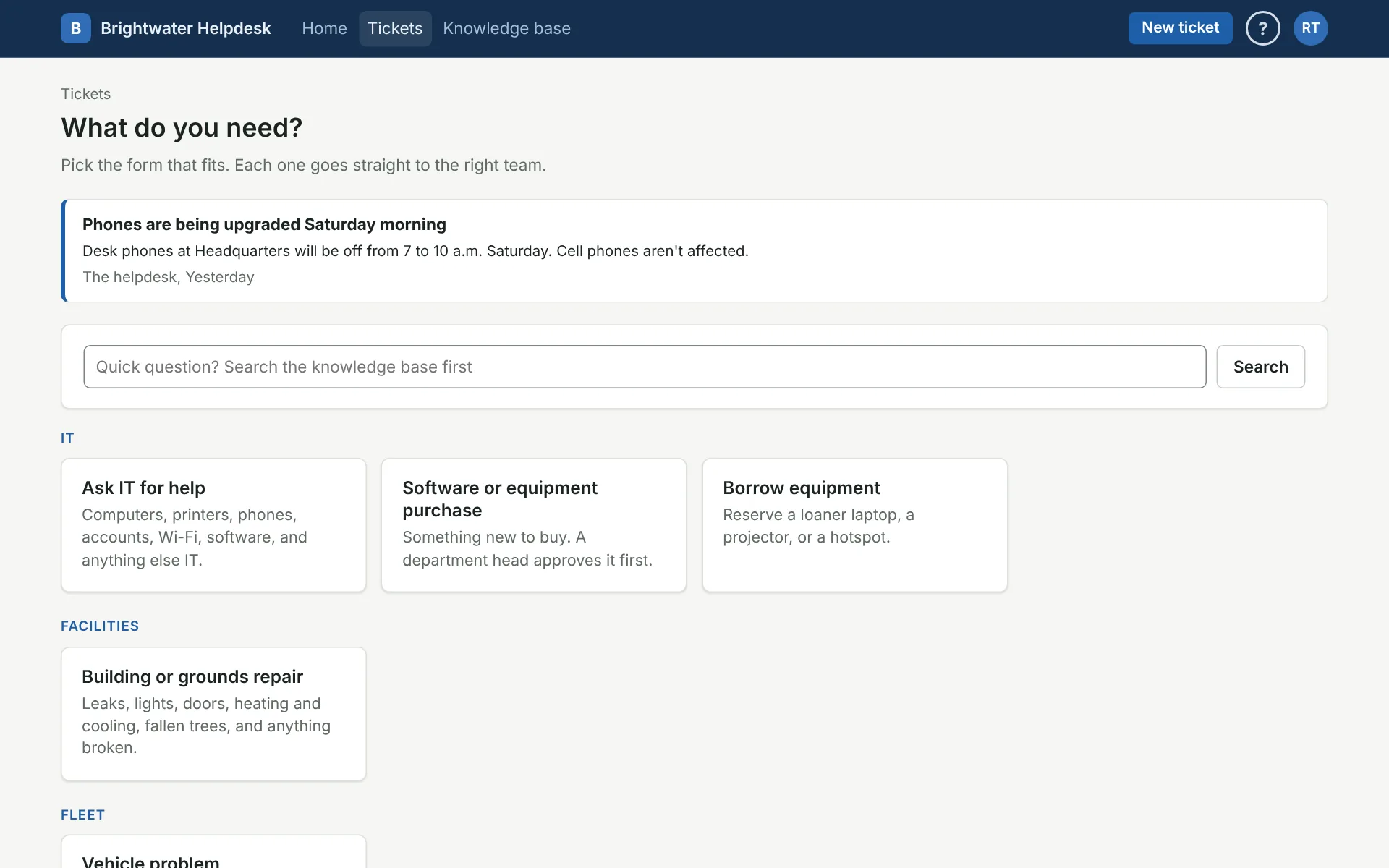
Start typing in the search box at the top to narrow the list. If nothing fits, use the department’s general form (like “Ask IT for help”). The team can move it if it lands in the wrong place.
Some forms show a few knowledge base articles first. It’s worth a look, since one of them might fix it on the spot.
Fill it in
- Fields marked with a red star are required.
- Some questions only show up after an earlier answer. Pick a choice, and anything that depends on it appears.
- For a person, start typing their name and pick them from the list.
- Add photos or files where the form asks for them. If the form comes back with a problem, attach them again before you submit, since browsers don’t keep them.
Open it for someone else
If someone can’t open it themselves (their computer won’t start, say), tick Open this for someone else and pick them. They become the requester and get the emails, and you’re copied so you can follow along. Your helpdesk may limit this to techs.
From Slack or Teams
If your organization has set up the helpdesk’s Slack or Teams app, you can open a ticket without leaving chat. In Slack, type /helpdesk and what’s wrong. In Teams, tell the helpdesk app what’s wrong in a chat with it. Either way you’ll see the title and details to check before it’s opened, and you’ll hear back there and by email. In both, you can also turn any message into a ticket from its menu.
After you submit
You’ll land on your new ticket’s page. You’ll get an email as it moves along, and you can reply there or from the email. Some requests need someone’s OK first, so they show Waiting on approval until it’s decided. See Your requests.
More on for your staff
Still stuck?
Search all the guides or write to us on the Support page.