
Support · Inventory add-on
The inventory
Keep track of every piece of equipment, from laptops and printers to trucks and mowers, and who has it.
This guide is for the inventory add-on, which is extra on any plan.
The inventory is every piece of equipment your organization keeps track of: computers, monitors, printers, phones, network gear, vehicles, mowers, furniture, anything with a tag on it. Each piece has its own page with its details, who has it, its tickets, its upkeep, and its whole history.

Techs can look everything up. People whose role has Manage inventory add and change equipment for their own departments (the departments of their teams, and the ones they manage). People who change settings manage all of it.
Equipment one team looks after
Under Looked after by, equipment (and an equipment type) can belong to a whole department or to one team in it. Say Property Management has Buildings and Grounds, Custodial, and Vehicle Repair: give the trucks to Vehicle Repair and the mowers to Buildings and Grounds. Then only that team’s people with Manage inventory can change them, plus the department’s managers and people who change settings. Equipment left with the whole department works like before: anyone on any of its teams with Manage inventory can change it. Everyone who can look things up still sees all of it.
New equipment starts with its type’s department and team when that’s yours (anyone who looks after the whole department can still add it for the whole department). Reminders for one team’s equipment go to that team and the department’s managers. Filter the list by Team under More filters.
Equipment types
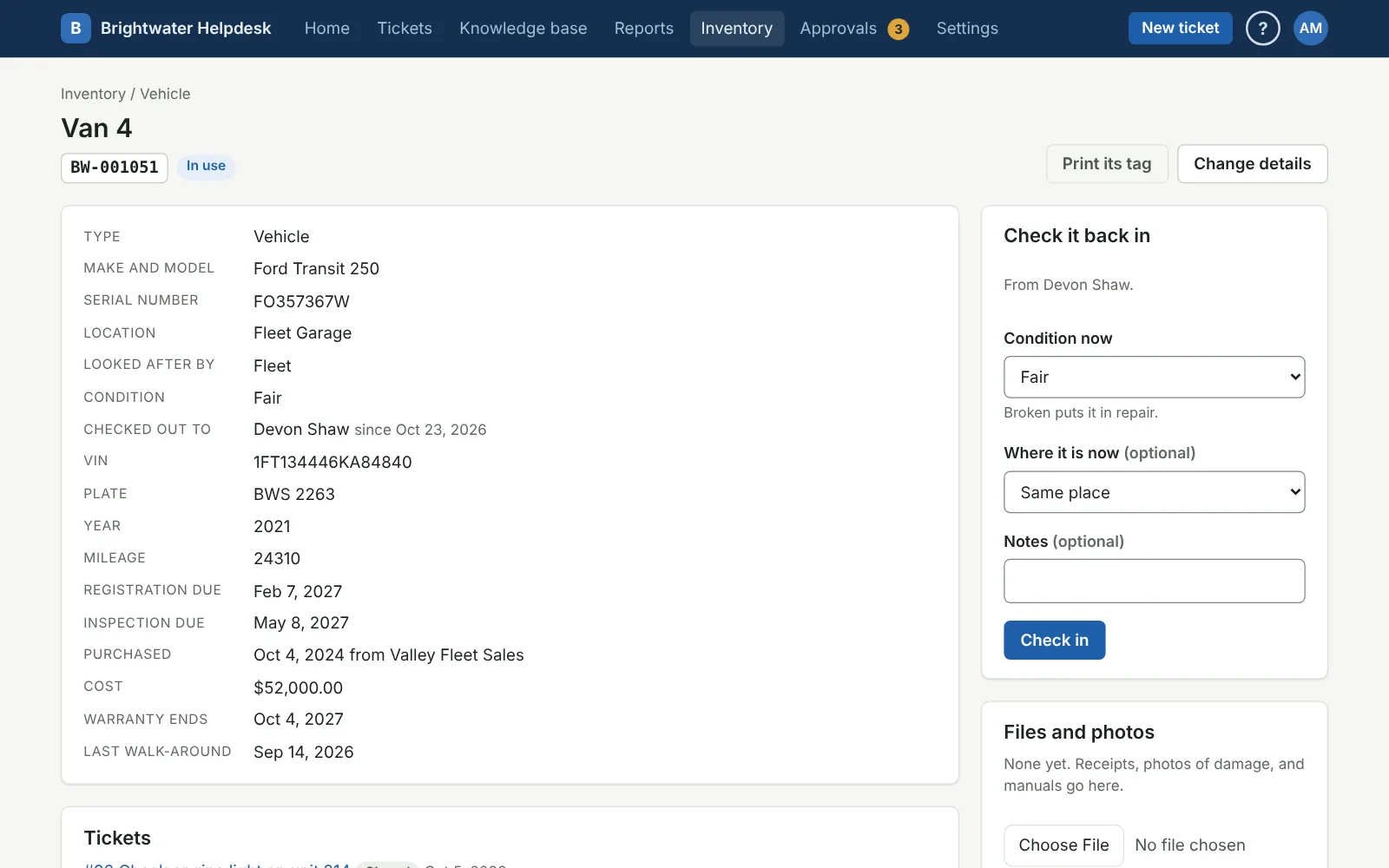
Each piece of equipment has a type, like Computer or Vehicle. A type belongs to the department that looks after it (IT, Facilities), or one team in it, and can have its own fields: a VIN and plate for a vehicle, engine hours for a mower. A date field can send a reminder, like 30 days before a registration is due. Set types up under Settings, Inventory, Equipment types (there’s a link under the inventory list too). On a new inventory, Add the usual ones gives you a starting set to change.
Untick Checked out to people for things that stay put, like printers and copiers.
Adding equipment
Click Add equipment, pick its type, and fill in what you know. Only the type is required. The asset tag is the number on its label; scanning it later opens its page. Any tag format works, so tags already on your equipment are fine. If it was re-tagged, put the old number in Old tag and that still finds it too.
Fill in Purchase and warranty to get a reminder 30 days before the warranty ends, and to see what your equipment cost on the reports.
Checking out and in
On a piece of equipment’s page, Check it out to someone. Start typing a name to pick them from the helpdesk, or just type a name for someone who isn’t in it. Add a due back date for a loaner. Check it back in when it comes back, with its condition. Broken puts it in repair.
The checkout history shows everyone who’s had it. People see what’s checked out to them under My equipment in their account menu.
To let people reserve loaners on a request form ahead of time, see Reservations.
Status and disposal
The statuses are in stock, in use, in repair, retired, and lost or stolen. When something leaves for good (surplus, recycled, sold, destroyed), use Record a disposal on its page. It keeps the record an auditor asks for: how, when, who approved it, and what happened to the data on it. If you recorded one by mistake, you can take it back.
Tickets and upkeep
The ticket page has an Equipment box, where techs tie a ticket to the equipment it’s about. The equipment’s page then lists every ticket it’s had. A request form can also ask which equipment it’s about (in the form’s settings, Ask which equipment it’s about).
For regular maintenance, like an oil change every three months, click Add a repeating maintenance ticket on the equipment’s page. It’s a recurring ticket tied to that equipment.
Reports and spreadsheets
Reports (at the top of the inventory list, and, if you run reports, the Inventory tile on the main Reports page) shows what you have by type, location, department, and status, what it cost, what’s coming due in the next 90 days, what’s past due back, and what was disposed of this year. Download these as a spreadsheet gives you a CSV of whatever the list is showing.
More on inventory add-on
- What the add-on does
- Importing equipment
- Scanning, tags, and walk-arounds
- Find equipment on your network
- Sync devices from Intune and Google
- Reservations
Still stuck?
Search all the guides or write to us on the Support page.